PerfectOne ERP — Grocery POS & Business Management
A complete point-of-sale, inventory, procurement and accounting platform for retail and grocery stores. This guide walks you through every screen, from ringing up a sale to closing the books.
01Introduction
PerfectOne ERP is a browser-based system that runs the day-to-day of a grocery or retail business — selling at the counter, buying from suppliers, tracking stock and expiry, managing customer and supplier accounts, and keeping full double-entry accounting behind the scenes.
What you can do with it
Sell fast
A touch-friendly POS with barcode scanning, held sales, discounts and multiple payment methods.
Control stock
Real-time stock levels, low-stock alerts, stock counts, transfers, repack and wastage.
Buy smart
Purchase orders, goods-received notes (GRN) and supplier returns in one flow.
Track expiry
Batch and expiry tracking with near-expiry and expired-item warnings.
Manage accounts
Customer and supplier ledgers, receivables, payables and credit control.
See the numbers
Live dashboard plus business and financial reports — P&L, balance sheet, trial balance.
02Requirements
PerfectOne ERP runs entirely in a web browser — there is nothing to install on the cashier’s computer.
| Item | Recommended |
|---|---|
| Browser | Latest Google Chrome, Microsoft Edge or Firefox |
| Screen | Any size — the interface adapts from phone to wide desktop |
| Internet | Broadband for full features. The POS keeps working offline and syncs when back online |
| Hardware (optional) | USB/Bluetooth barcode scanner, receipt printer, label printer, cash drawer |
03Logging in
Open your store’s web address in a browser. You will be greeted by the sign-in screen.
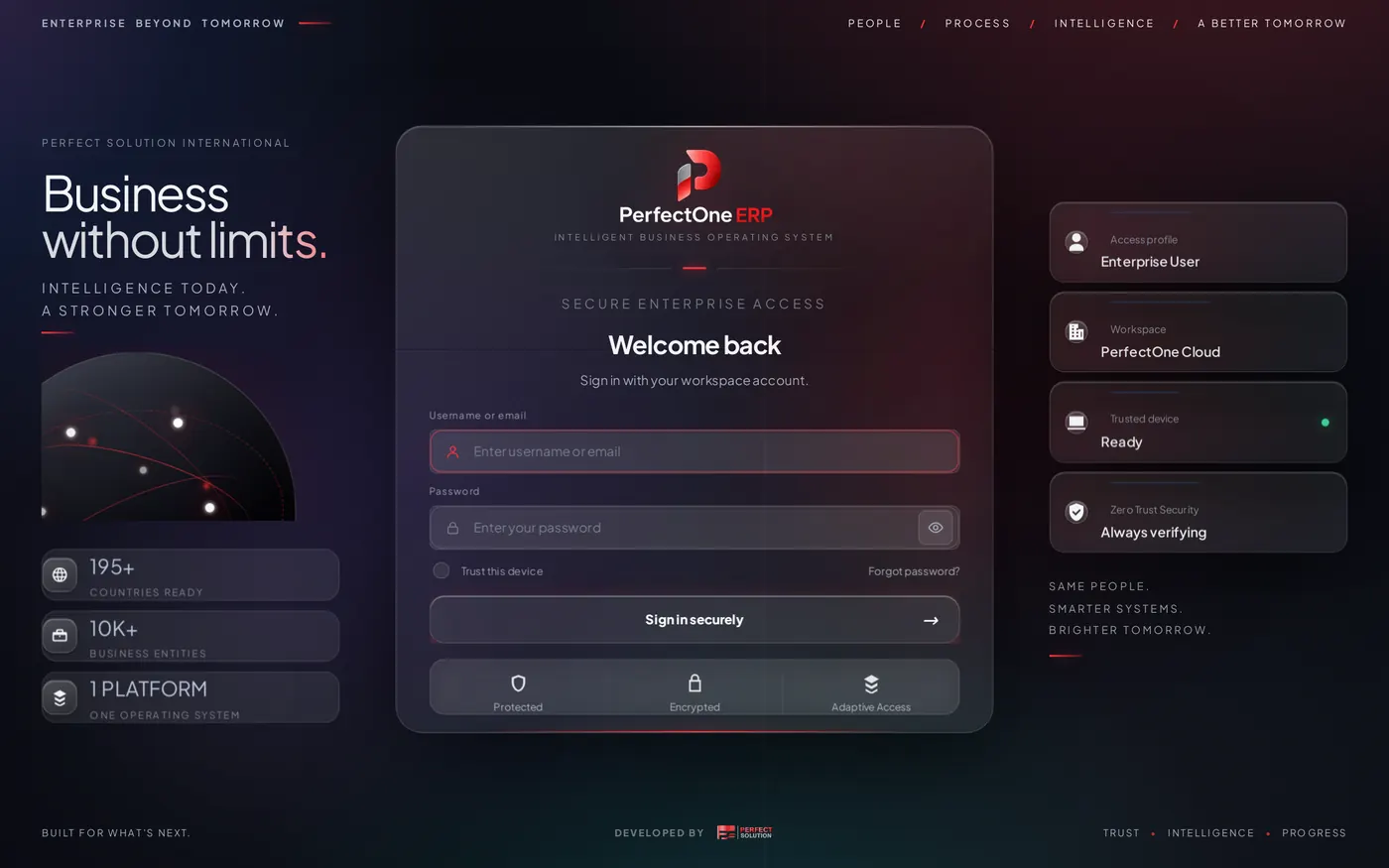
- Enter your username or email.
- Enter your password. Use the eye icon to reveal it if needed — watch for the Caps Lock warning.
- Tick Remember me to store your username on this device (never the password).
- Click Sign in. Cashiers land on the POS; managers and admins land on the Dashboard.
04Dashboard
The Dashboard is your store at a glance — live performance and operational health, all on one screen.
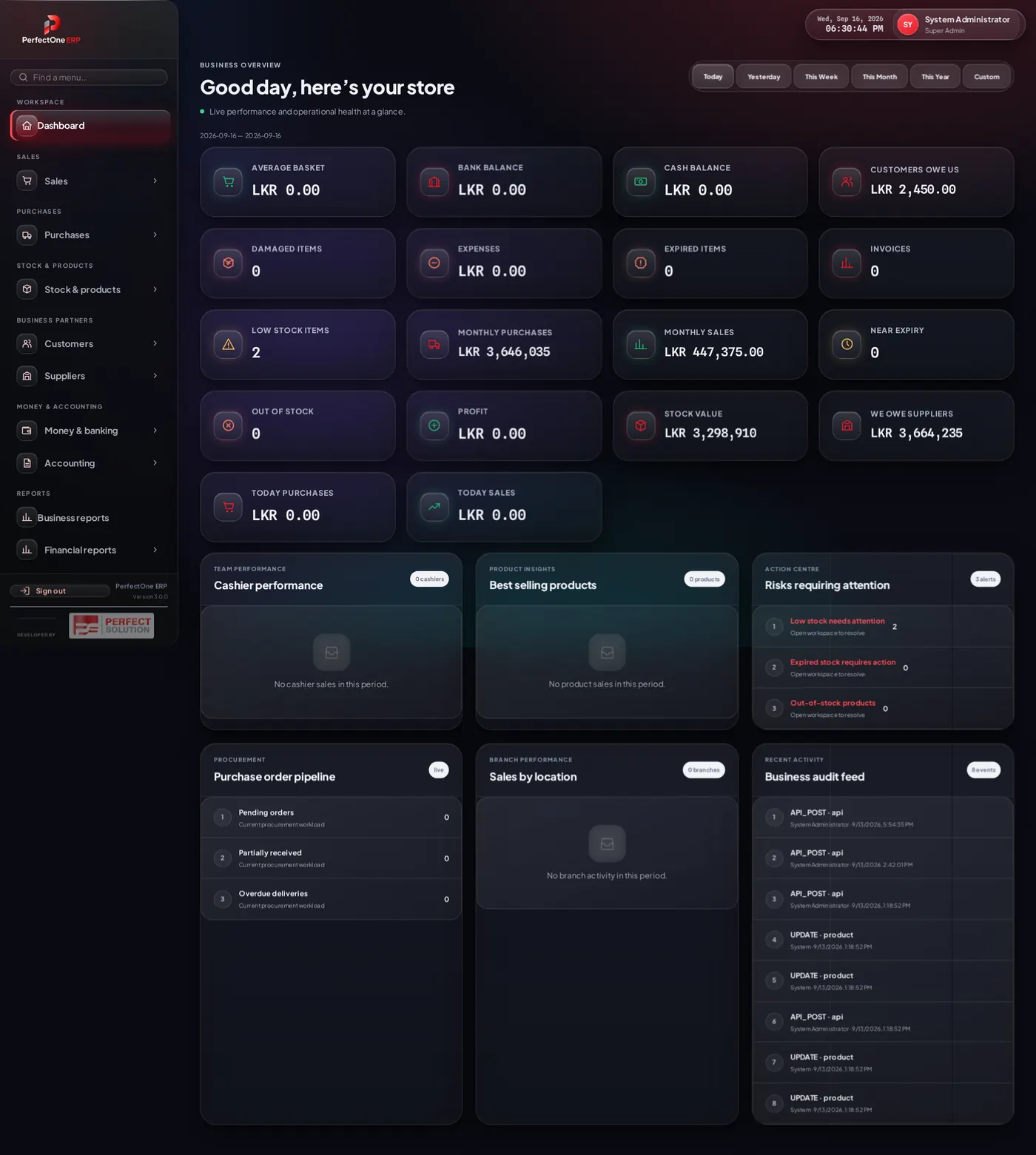
What the tiles mean
- Sales & purchases — today’s and this month’s sales, purchases and profit.
- Cash & bank — current cash and bank balances, what customers owe you, what you owe suppliers.
- Stock health — stock value, low-stock, out-of-stock, damaged, expired and near-expiry counts.
- Insight panels — cashier performance, best-selling products, procurement pipeline, sales by branch and a live audit feed.
06Point of Sale (POS)
The POS is the fast checkout screen — built for a busy counter and usable with a touchscreen, keyboard or barcode scanner.
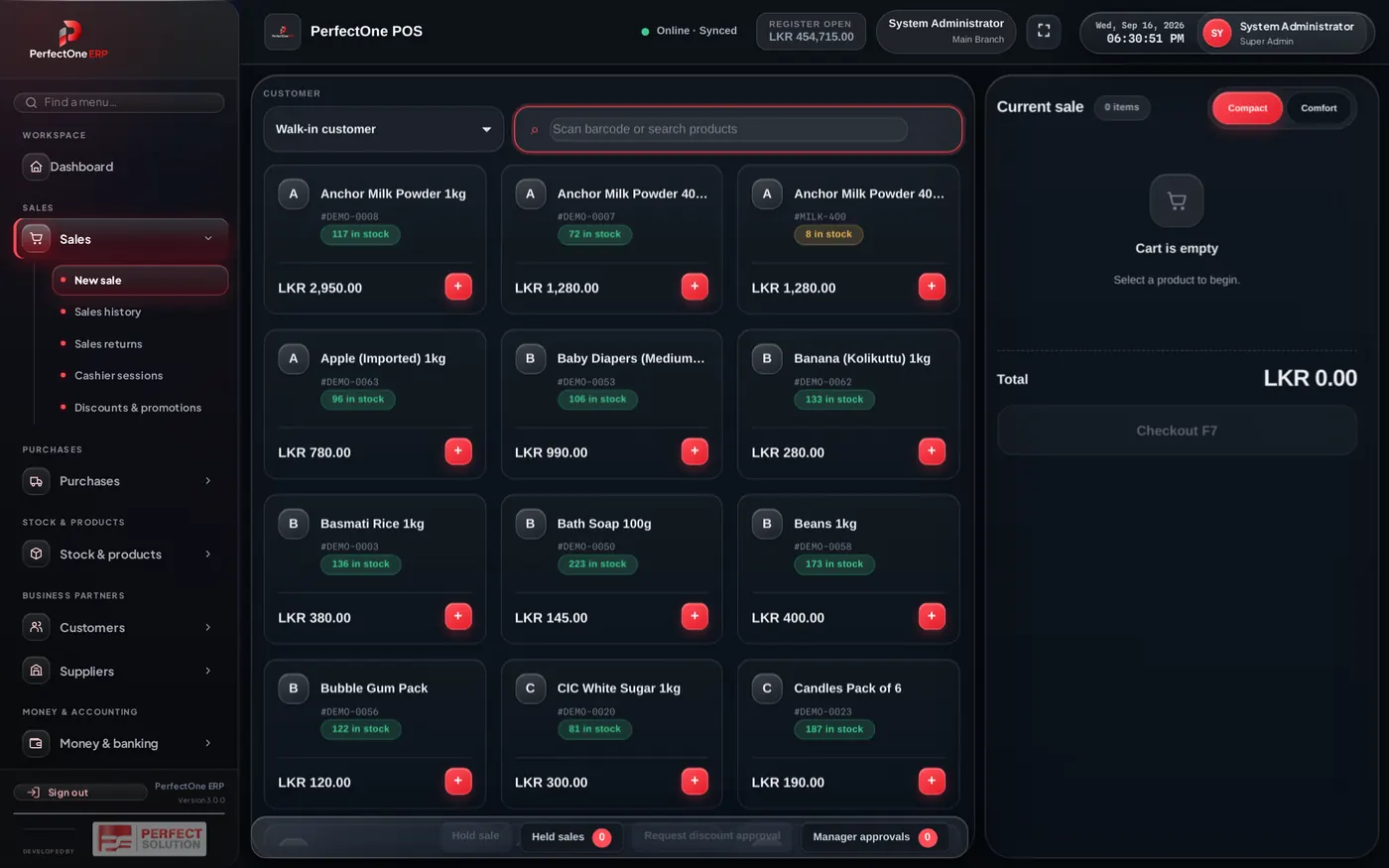
Ringing up a sale
- Pick the customer (or leave it as Walk-in customer).
- Scan a barcode or type a name in the search box, or tap a product tile to add it to the cart.
- Adjust quantities in the cart; each line shows price and stock on hand.
- Apply an invoice discount if allowed (large discounts may need manager approval).
- Choose a payment method — Cash, Bank or Card — and enter the amount paid; the change due is calculated for you.
- Press Checkout (F7) to complete the sale and print the receipt.
Handy features
- Hold sales — park an in-progress cart and serve the next customer, then resume it later.
- Discount approval — request a manager’s approval for over-limit discounts without leaving the screen.
- Compact / Comfort — switch the cart density to suit your screen.
- Offline mode — if the connection drops, sales are stored on the device and sync automatically when it returns (see Offline & sync).
07Sales history & returns
Every completed sale is listed here with its invoice number, cashier, customer, totals and payment status. Use the filters to find a specific invoice or a date range.
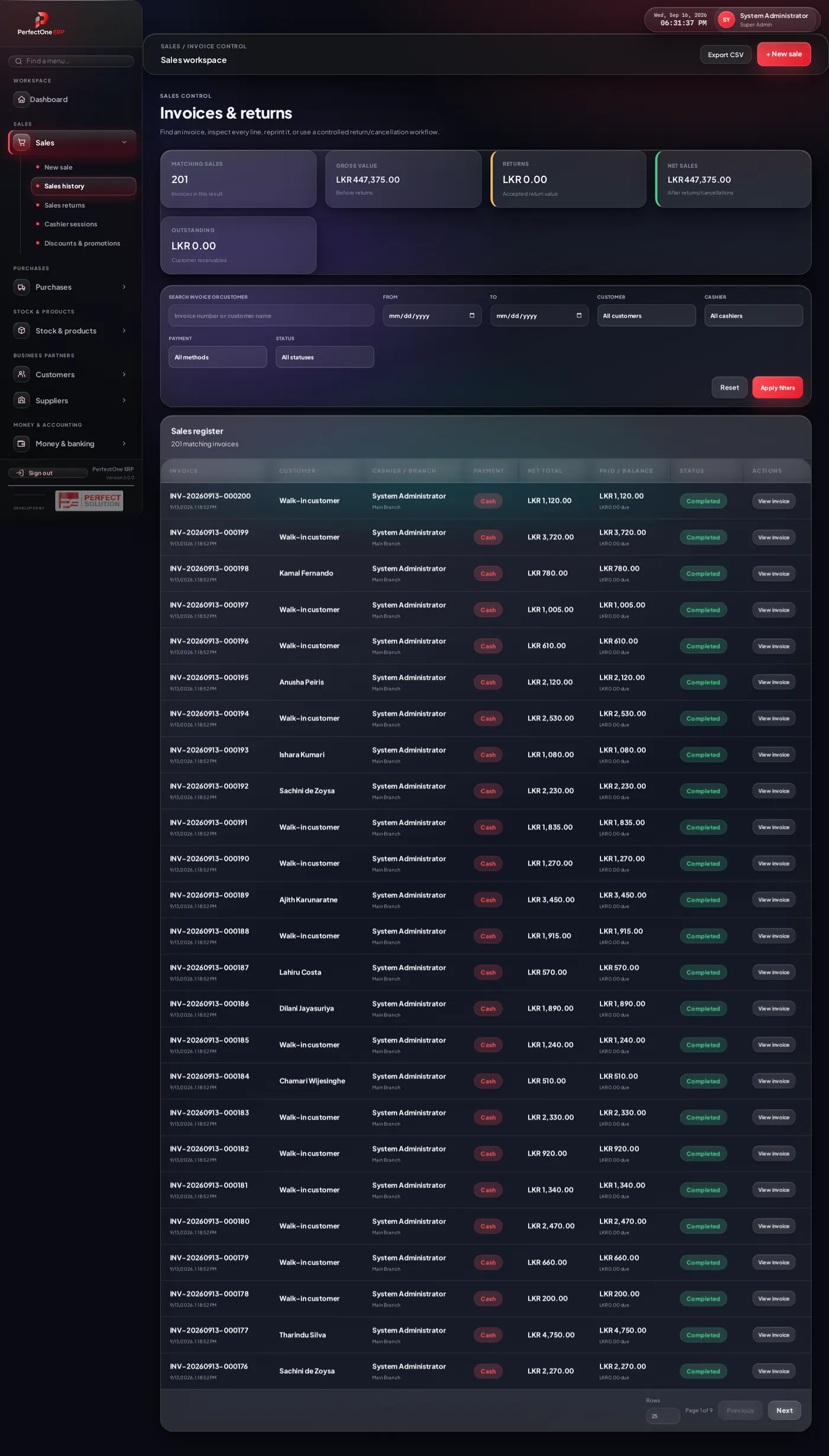
- Open an invoice to view its lines, reprint the receipt or record a payment against credit sales.
- Process a return to take back items and refund or credit the customer; stock is added back automatically.
- Filter by Sales returns to review everything that has been returned.
08Cashier sessions
A cashier session tracks the cash drawer from the moment it is opened to when it is closed and reconciled at the end of a shift.
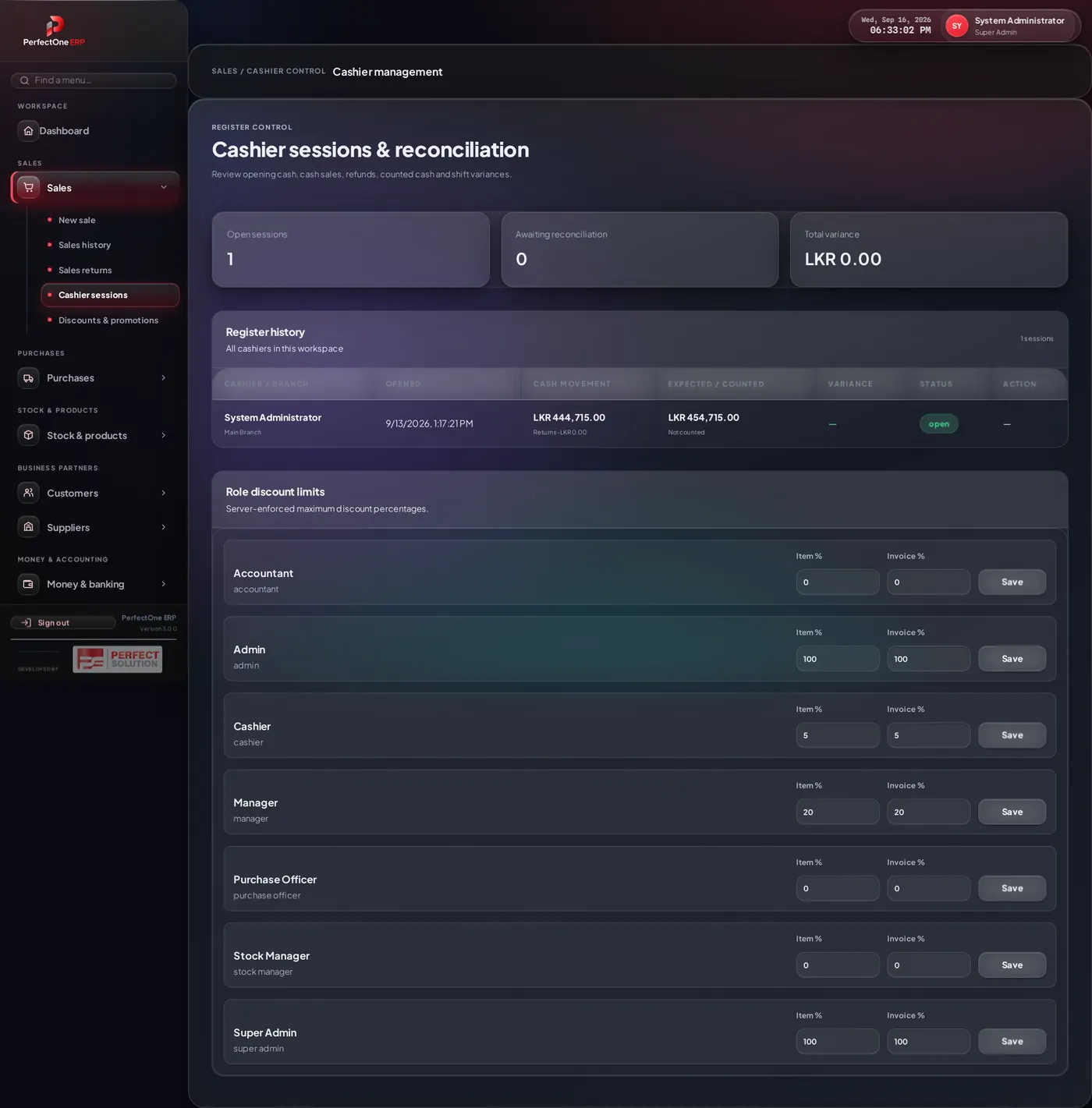
- Open a session with the opening float (starting cash).
- Sales, paid-ins and paid-outs are tallied against the drawer during the shift.
- Close the session, count the drawer, and the system shows any over/short difference.
09Discounts & promotions
Set up the discounts and promotions that apply at the POS — by product, category or for a limited period.
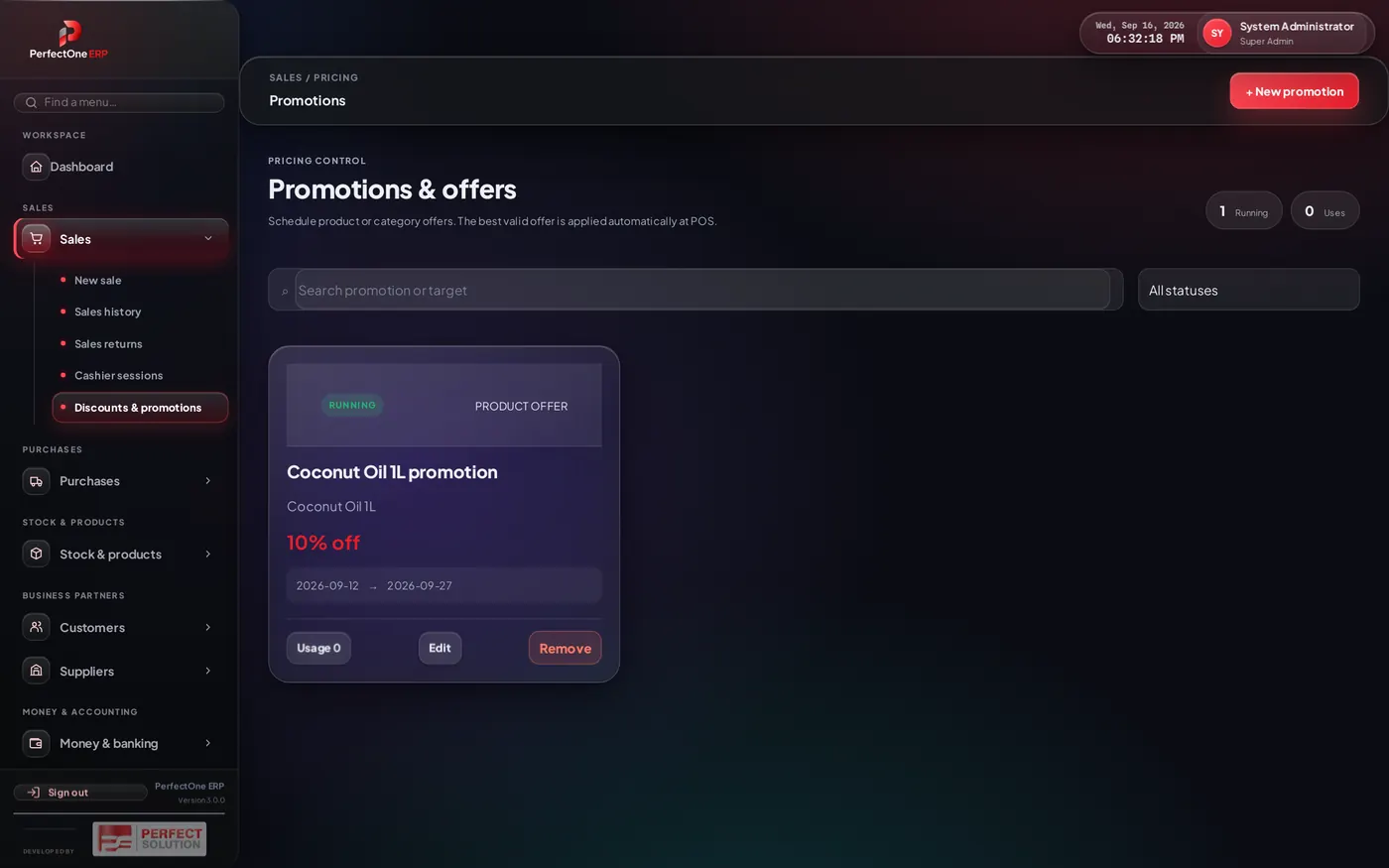
Use the search and status filter to find active, scheduled or expired promotions, and edit them at any time. Discount limits that cashiers may apply on their own are controlled by roles.
10Purchase orders
Procurement follows the natural flow of buying stock: raise a purchase order → receive the goods → return anything faulty.
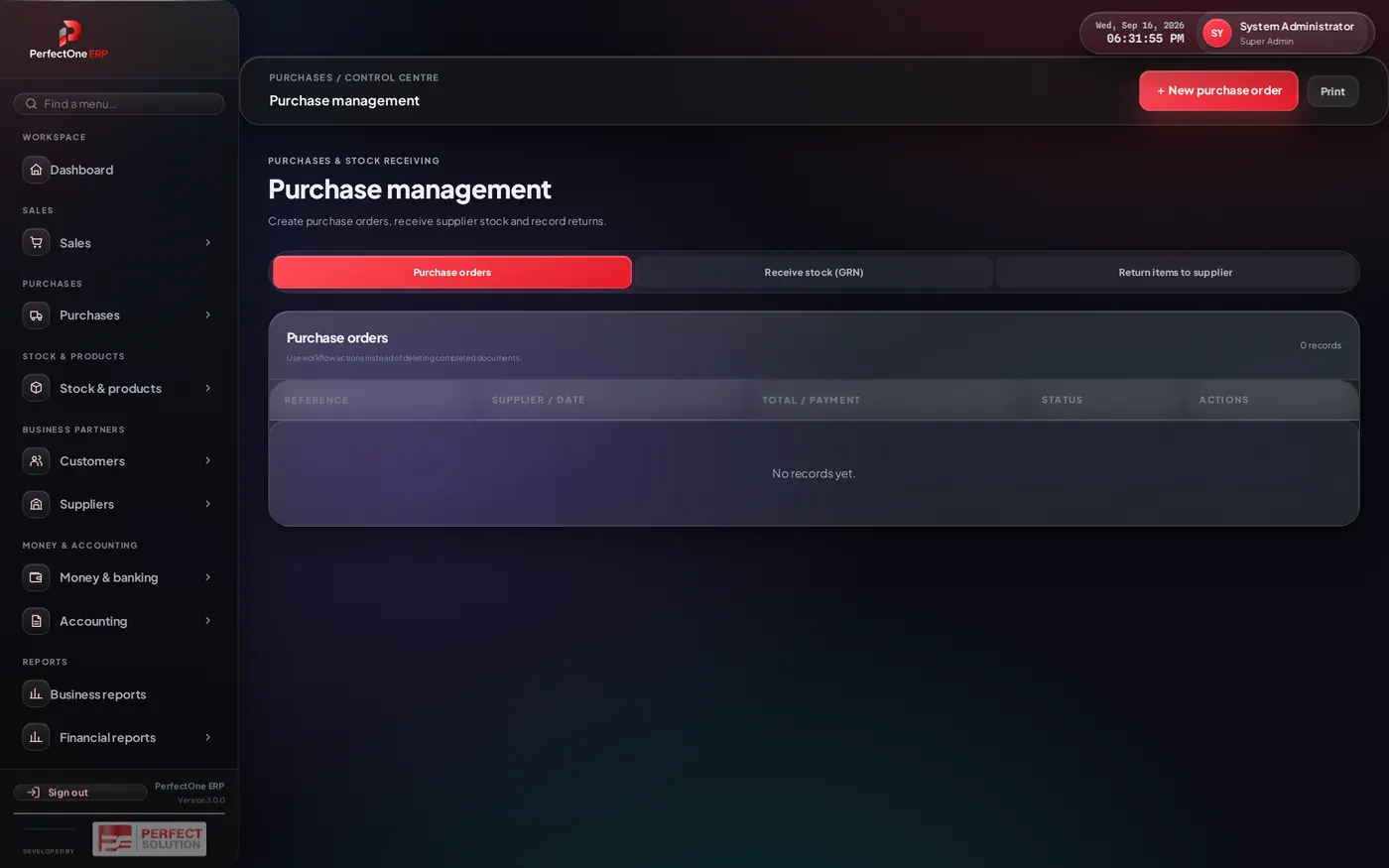
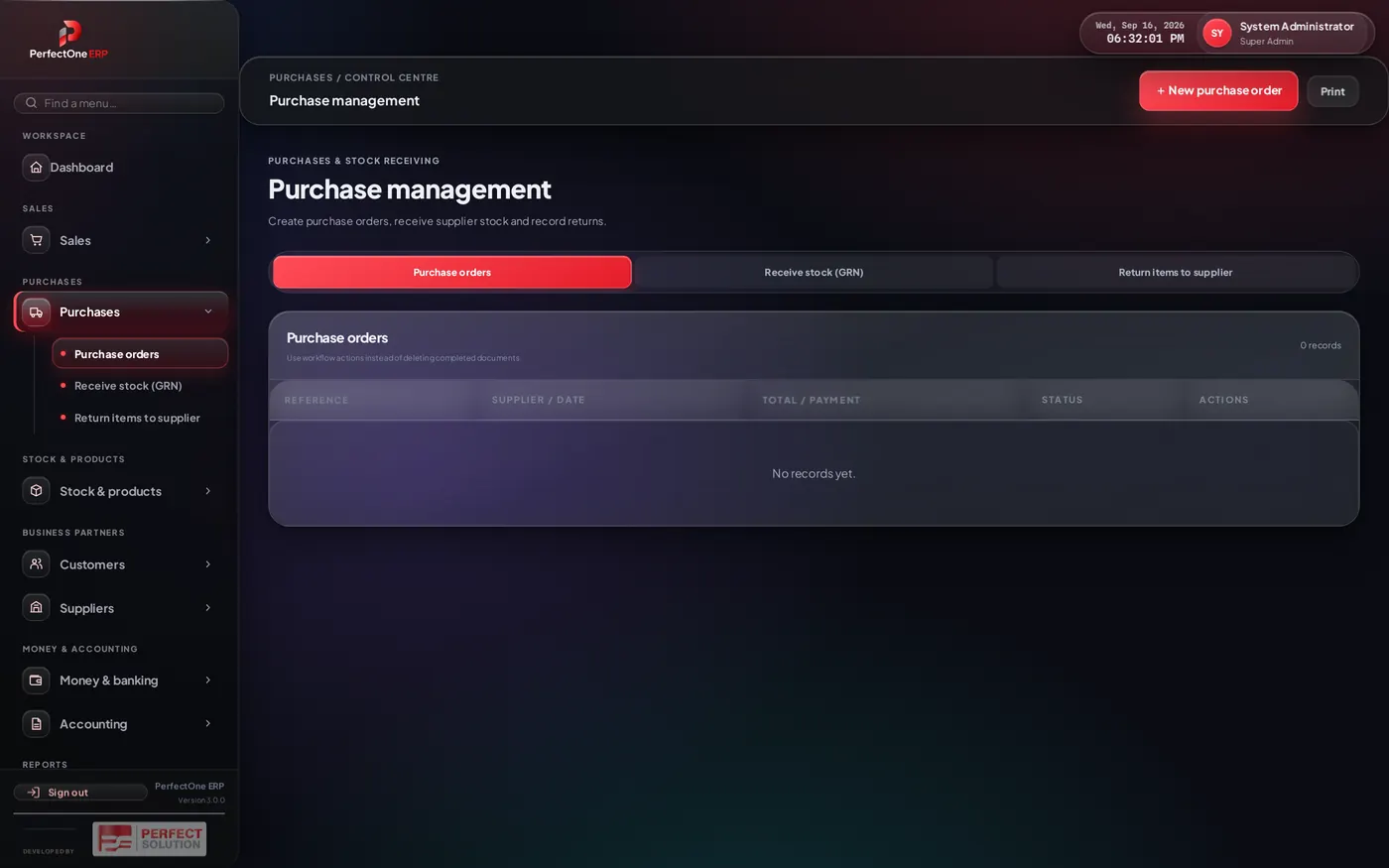
- Click New purchase order and choose the supplier.
- Add products with the quantity and cost you agreed.
- Save the order — its status moves from pending to partially received to received as stock arrives.
11Receiving stock (GRN)
When goods arrive, record a Goods Received Note against the purchase order. This is what actually raises your stock levels and the supplier’s bill.
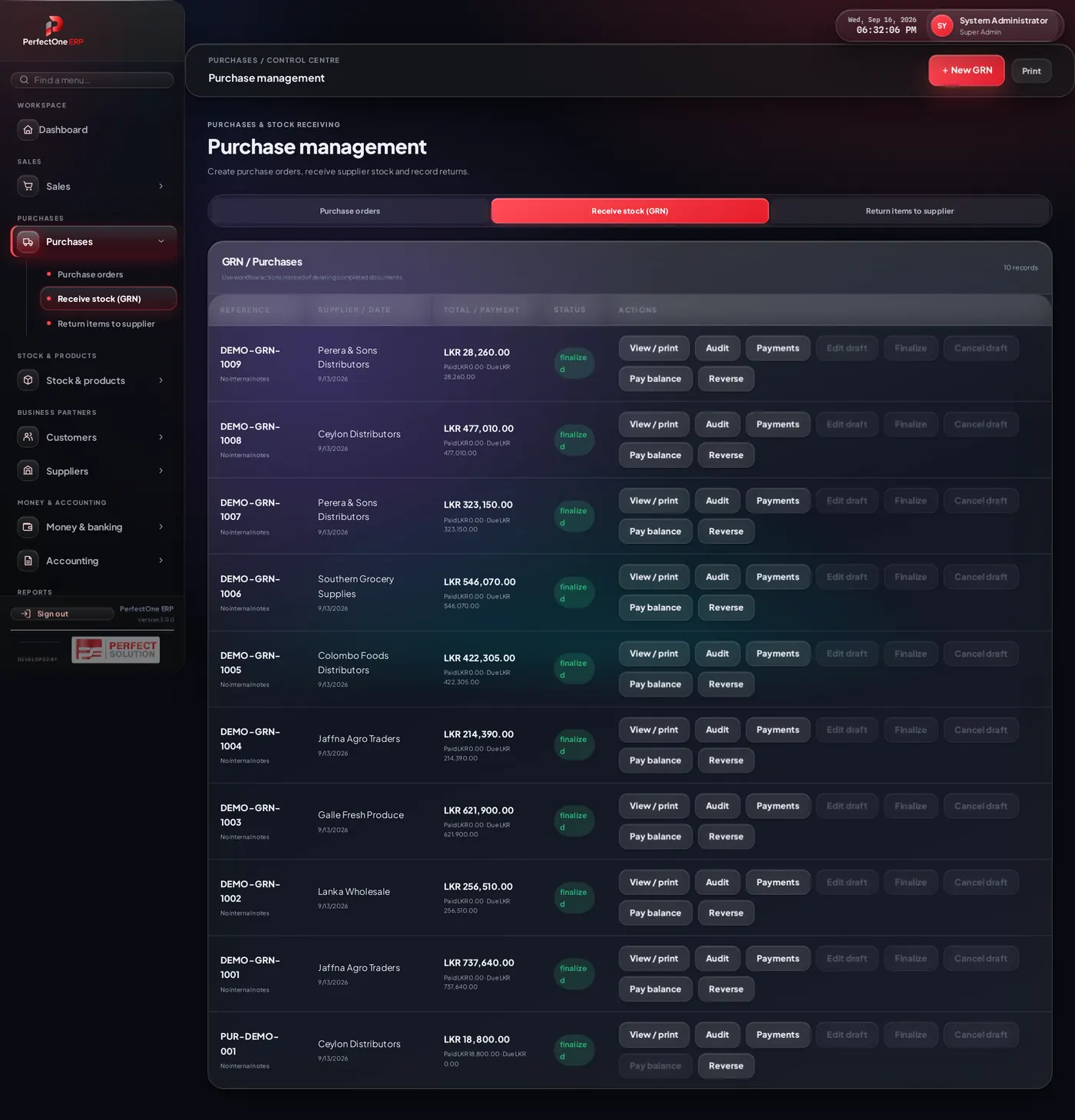
- Open Receive stock (GRN) and pick the purchase order.
- Confirm the quantities received and the batch/expiry where relevant.
- Save — stock goes up, and the amount you owe the supplier is recorded.
12Supplier returns
Send faulty, expired or wrong items back to the supplier and record the credit due.
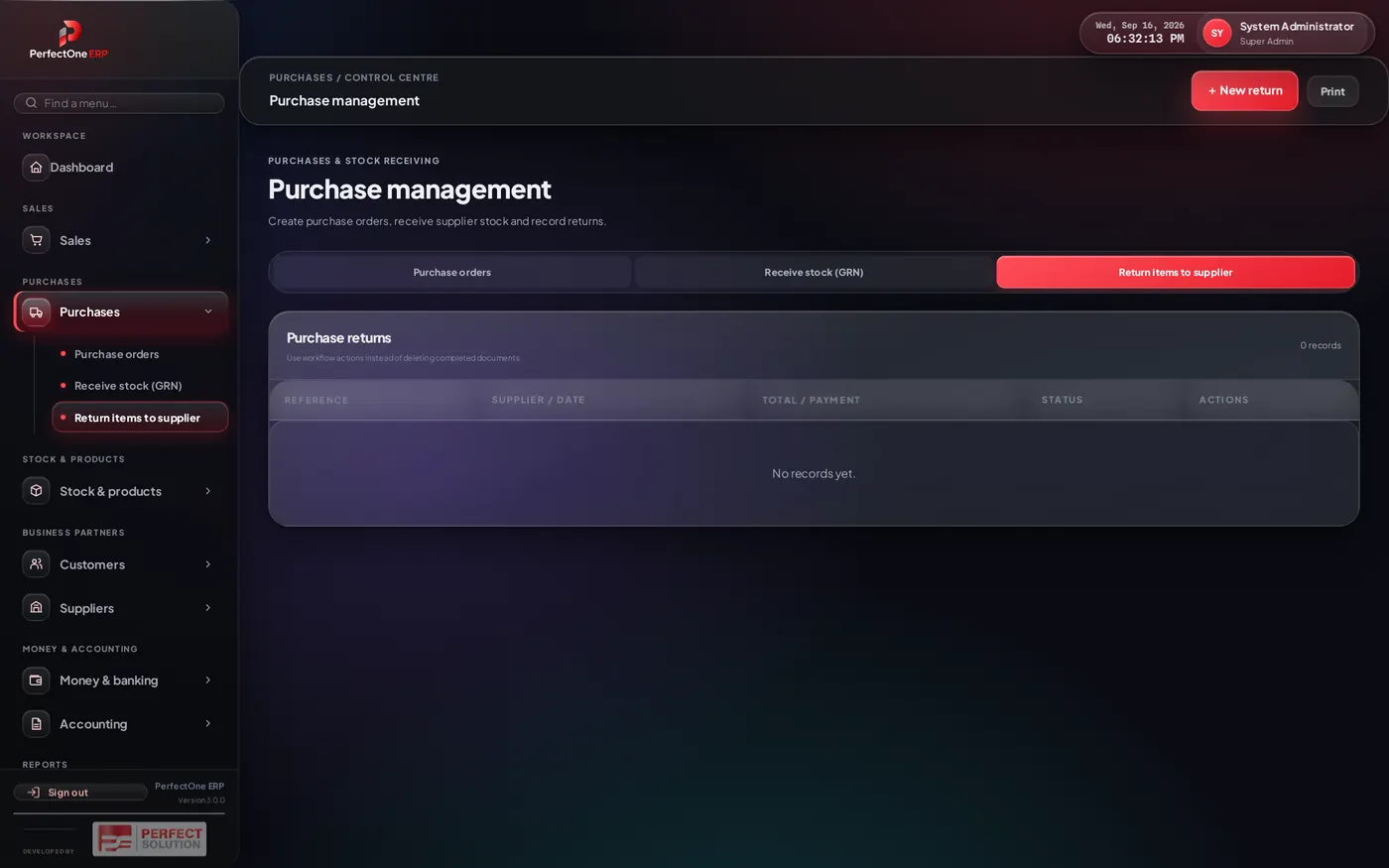
Create a return, select the items and quantities, and save. Stock is reduced and the supplier’s account is credited automatically.
13Products
The product catalogue is the heart of the system — everything you sell, with its barcode, price, cost, category and stock.
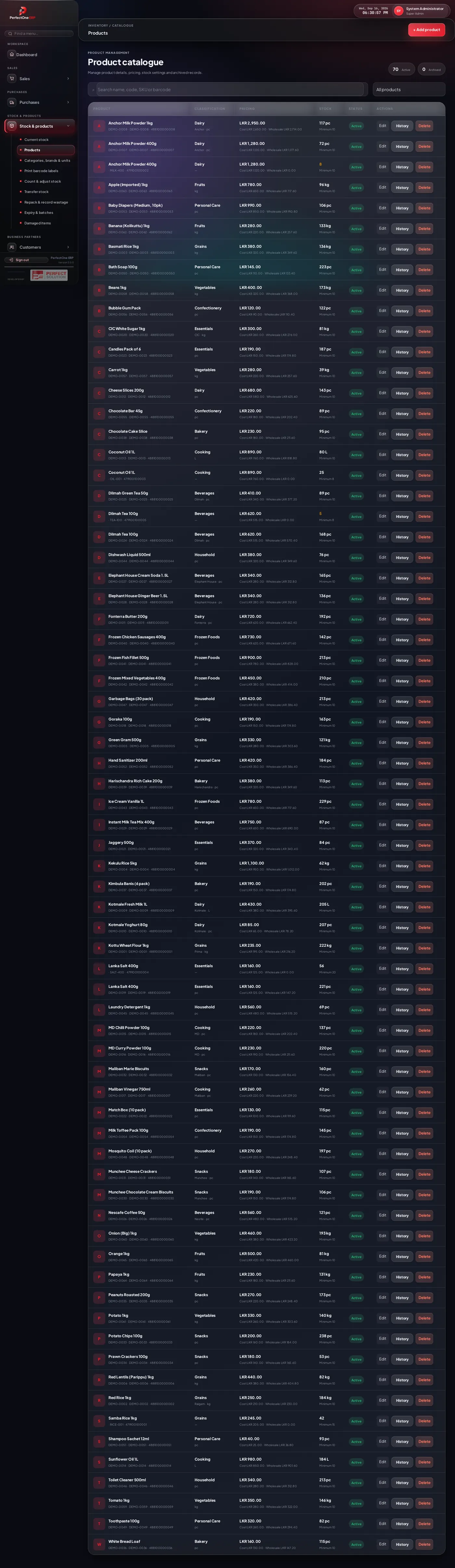
Adding a product
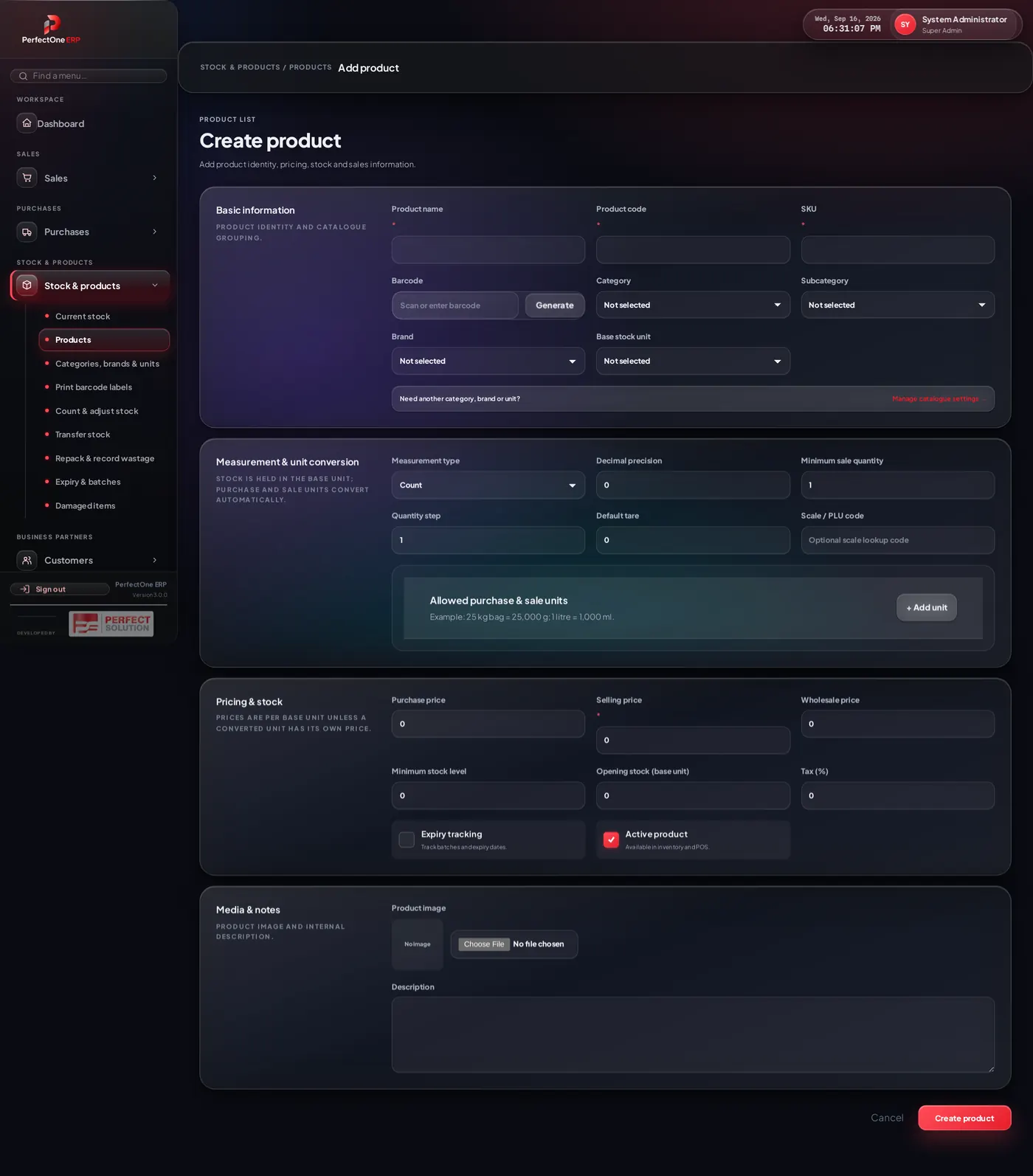
- Click New product.
- Enter the name, barcode, category, brand and unit.
- Set the selling price and cost price, plus tax if it applies.
- Optionally set a reorder level so the item shows in low-stock alerts.
- Save. The product is now available on the POS and in reports.
14Categories, brands & units
Keep your catalogue tidy by defining the categories, brands and units of measure that products are grouped by.
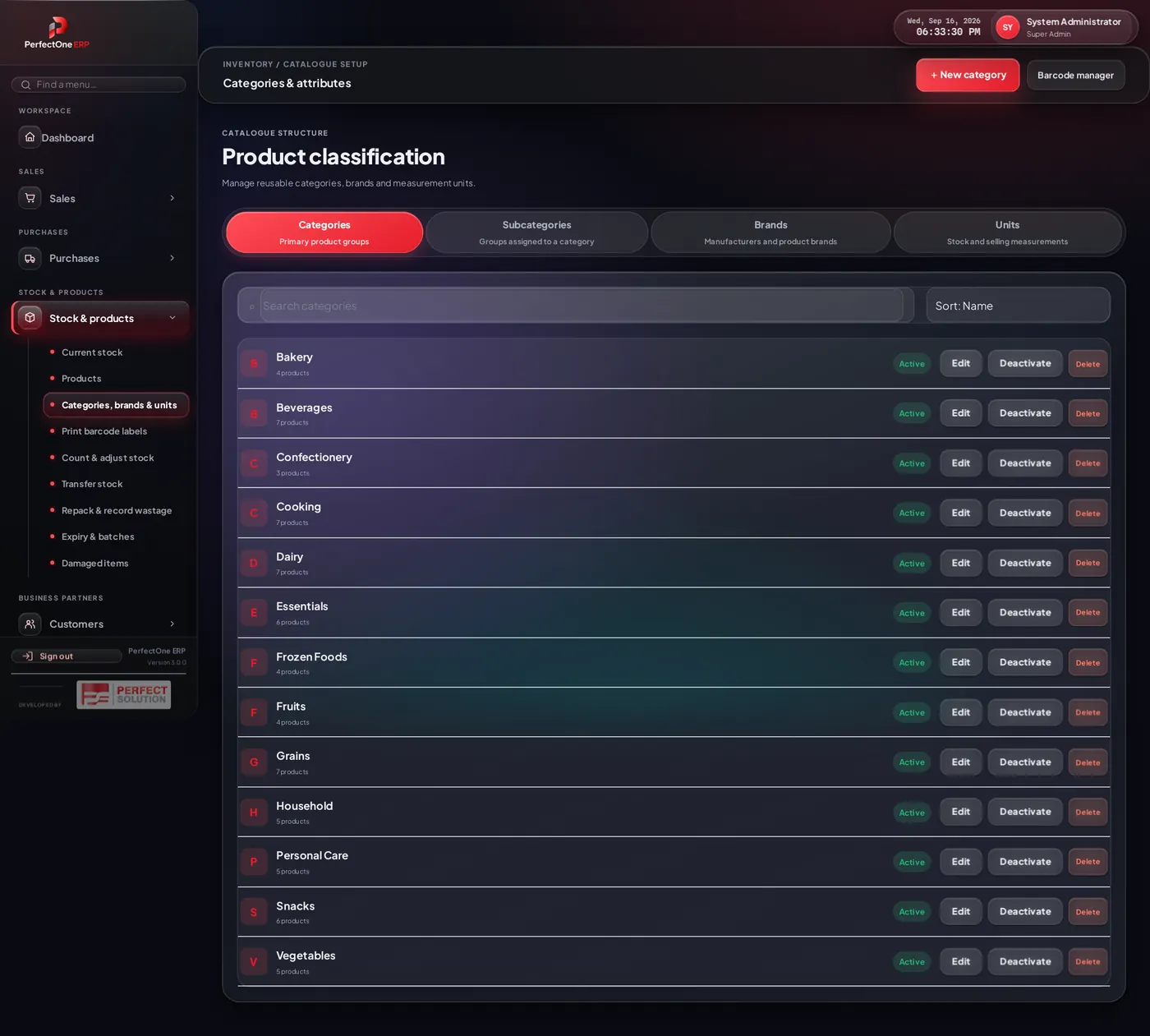
Well-kept categories make the POS grid, product search and reports far easier to use.
15Current stock & counts
See exactly how much of each product you hold, its value, and where it is low or out.
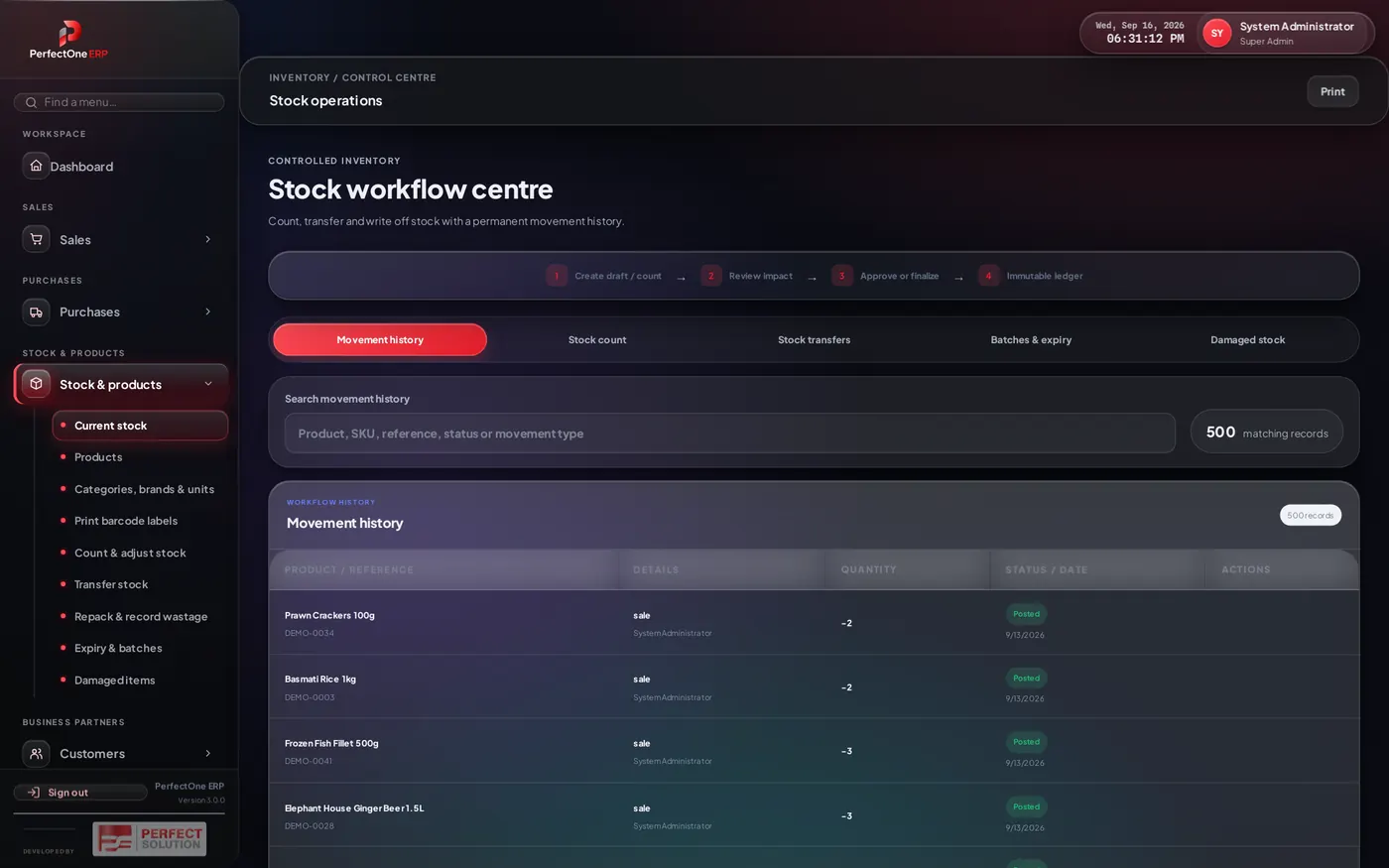
Counting & adjusting stock
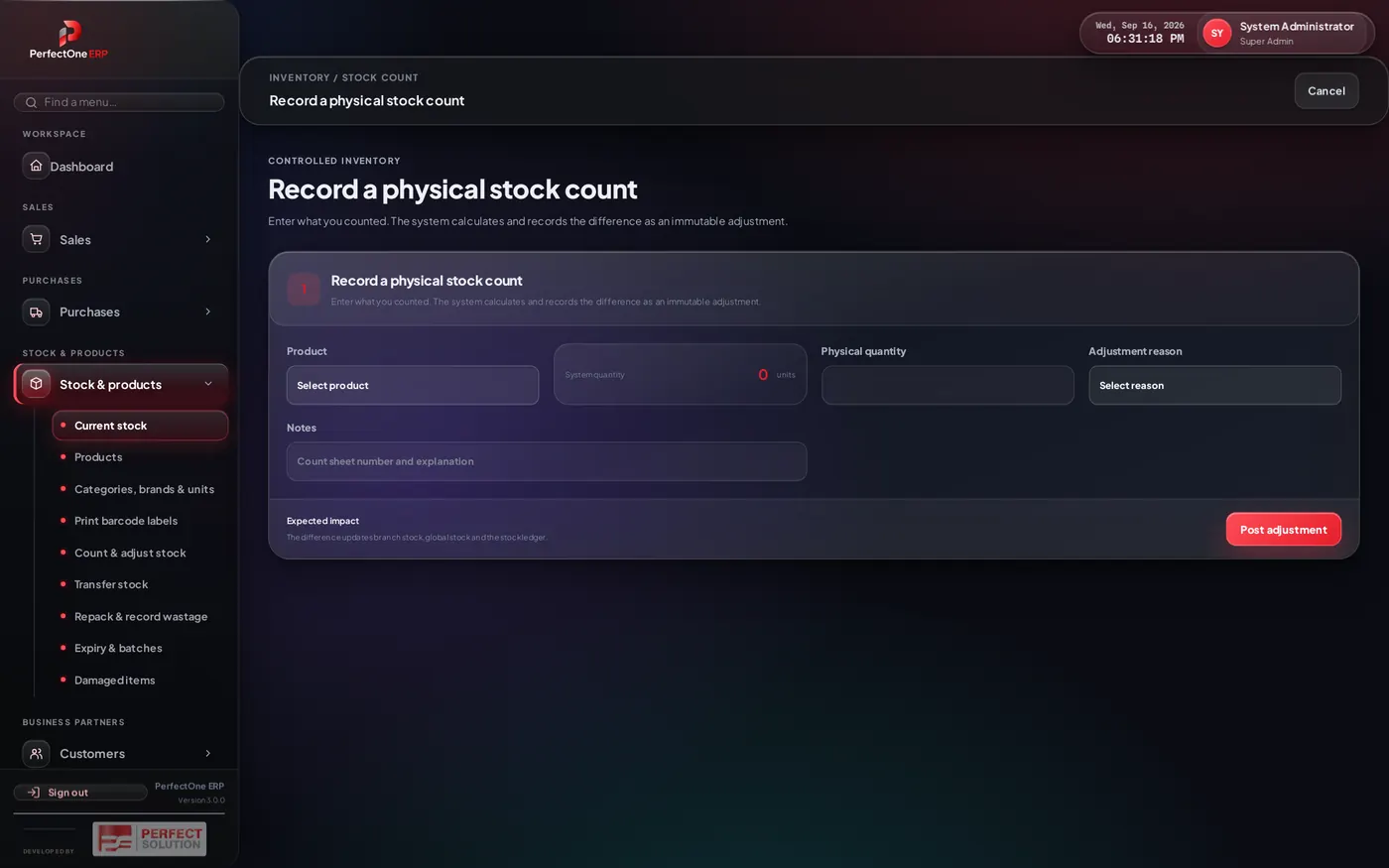
- Count & adjust stock — enter the physical count; the system records the difference.
- Damaged items — write off breakages and spoilage with a reason.
- Large adjustments can require manager approval before they take effect.
16Transfers & repack
Move stock between branches, or repack bulk items into smaller sellable units.
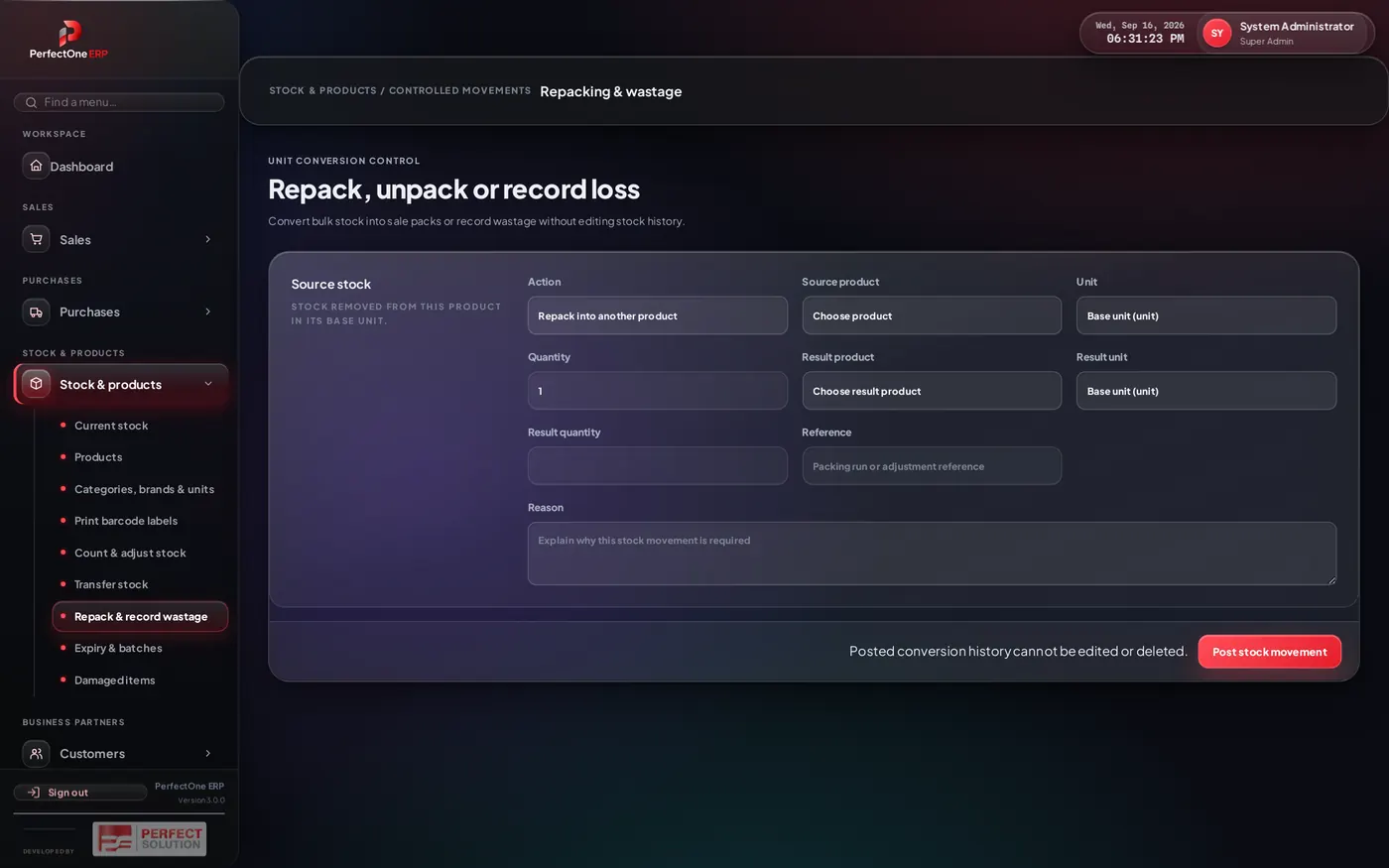
- Transfer stock — send items from one branch to another; the receiving branch confirms arrival.
- Repack & wastage — convert, for example, a 25 kg sack into 1 kg packs and record any loss.
17Expiry & batches
Track batch and expiry dates so nothing sells past its date and you can act on stock that is close to expiring.
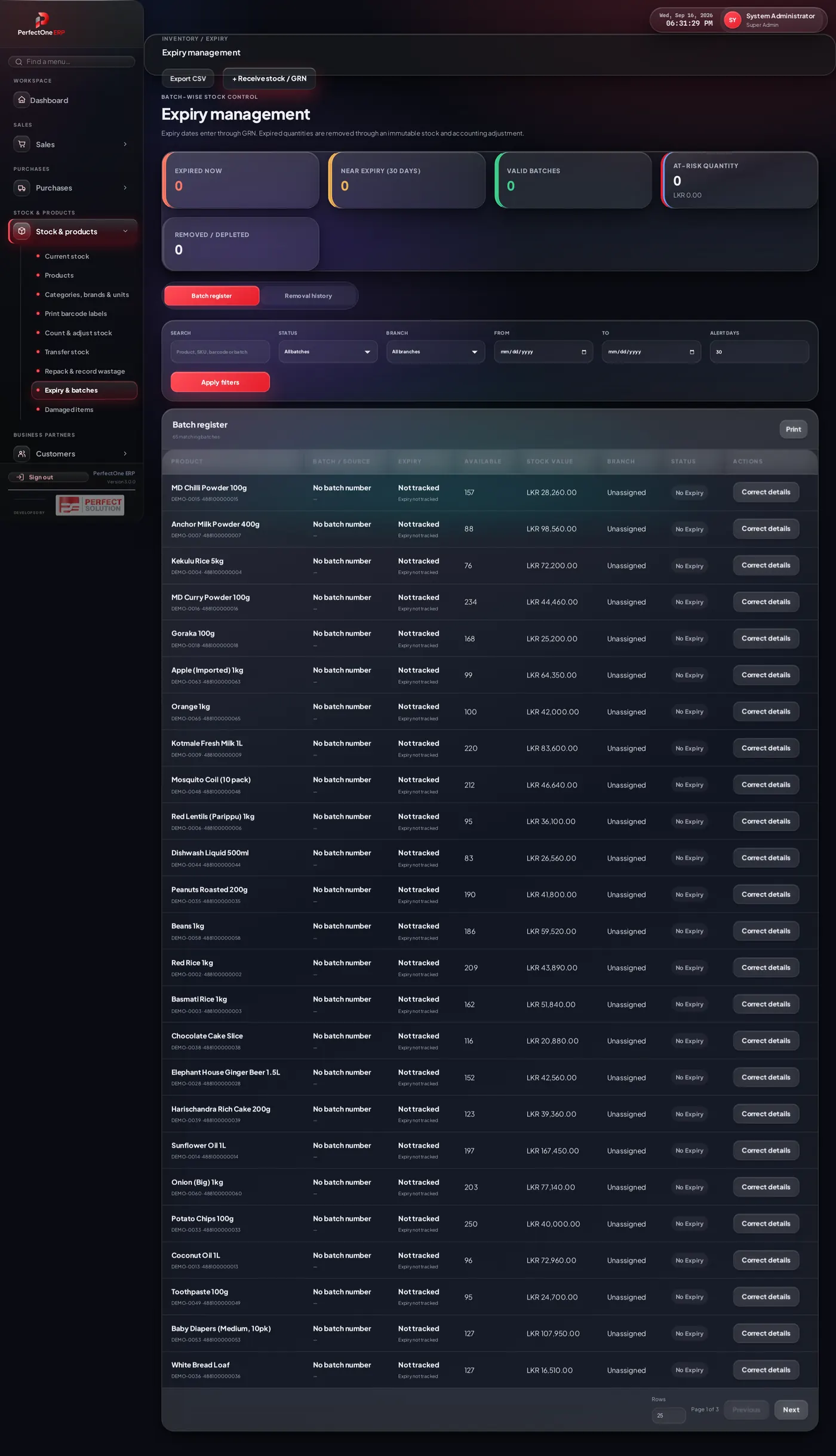
The Near Expiry and Expired Items figures also appear on the Dashboard and in the Admin centre so they are never missed.
18Barcode labels
Print barcode labels for shelf edges and loose products.
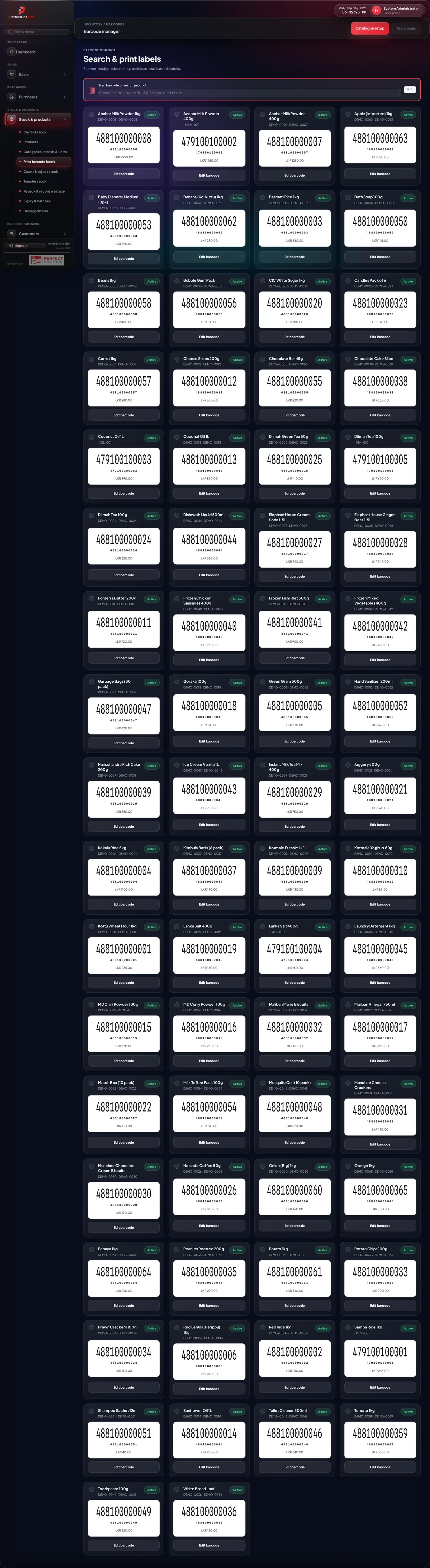
- Pick the products and the quantity of labels for each.
- Choose the label size and preview the layout.
- Print to any label or standard printer.
19Customers
Keep a directory of customers with their contact details, credit terms and running account balance.
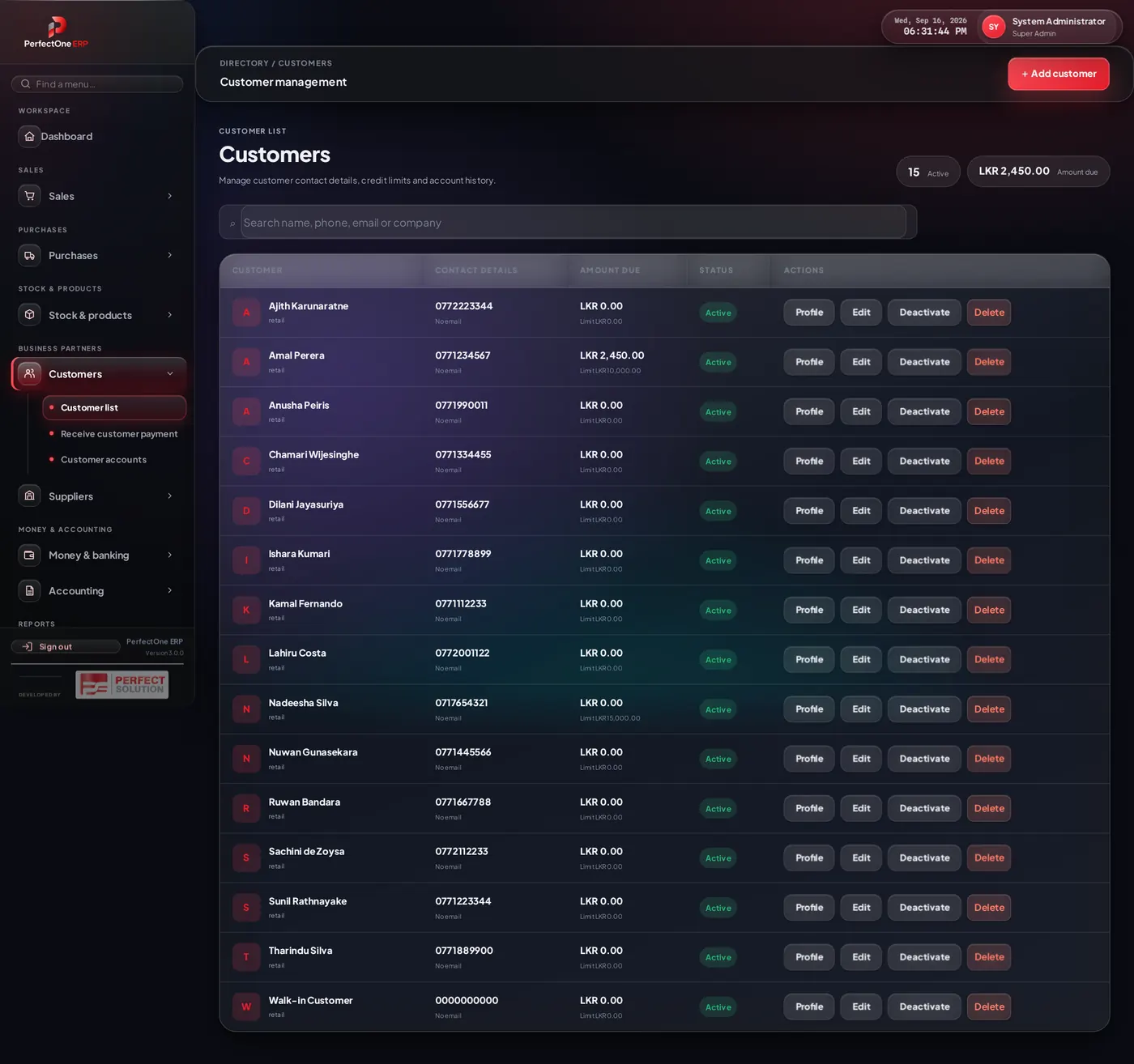
- Customer accounts — view the ledger of sales, payments and outstanding balance.
- Receive customer payment — record money received against credit sales (also under Money & banking).
20Suppliers
Manage the businesses you buy from, along with what you owe each of them.
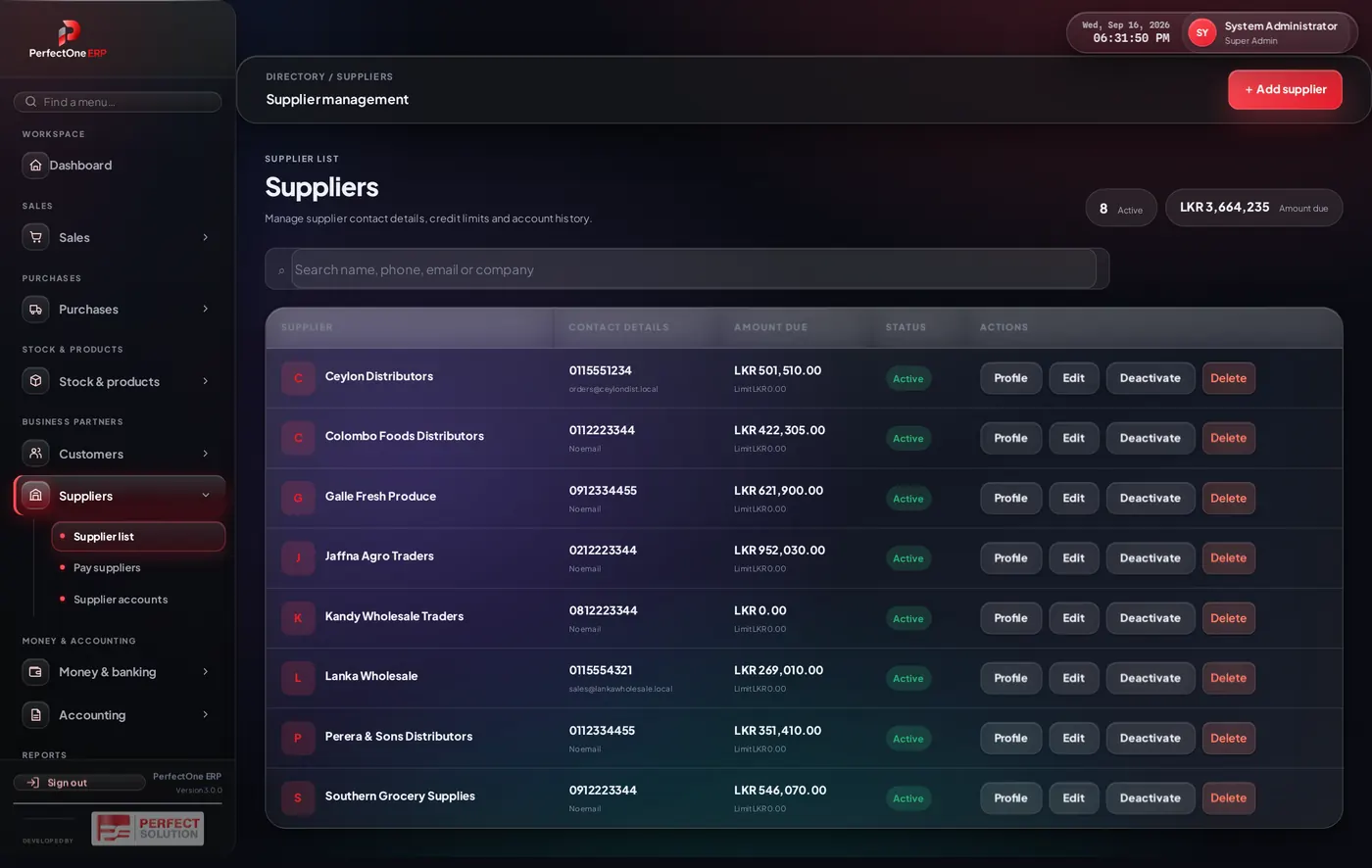
- Supplier accounts — the ledger of purchases, returns and payments.
- Pay suppliers — record payments made against outstanding bills.
21Money & banking
A single place for the cash and bank side of the business.
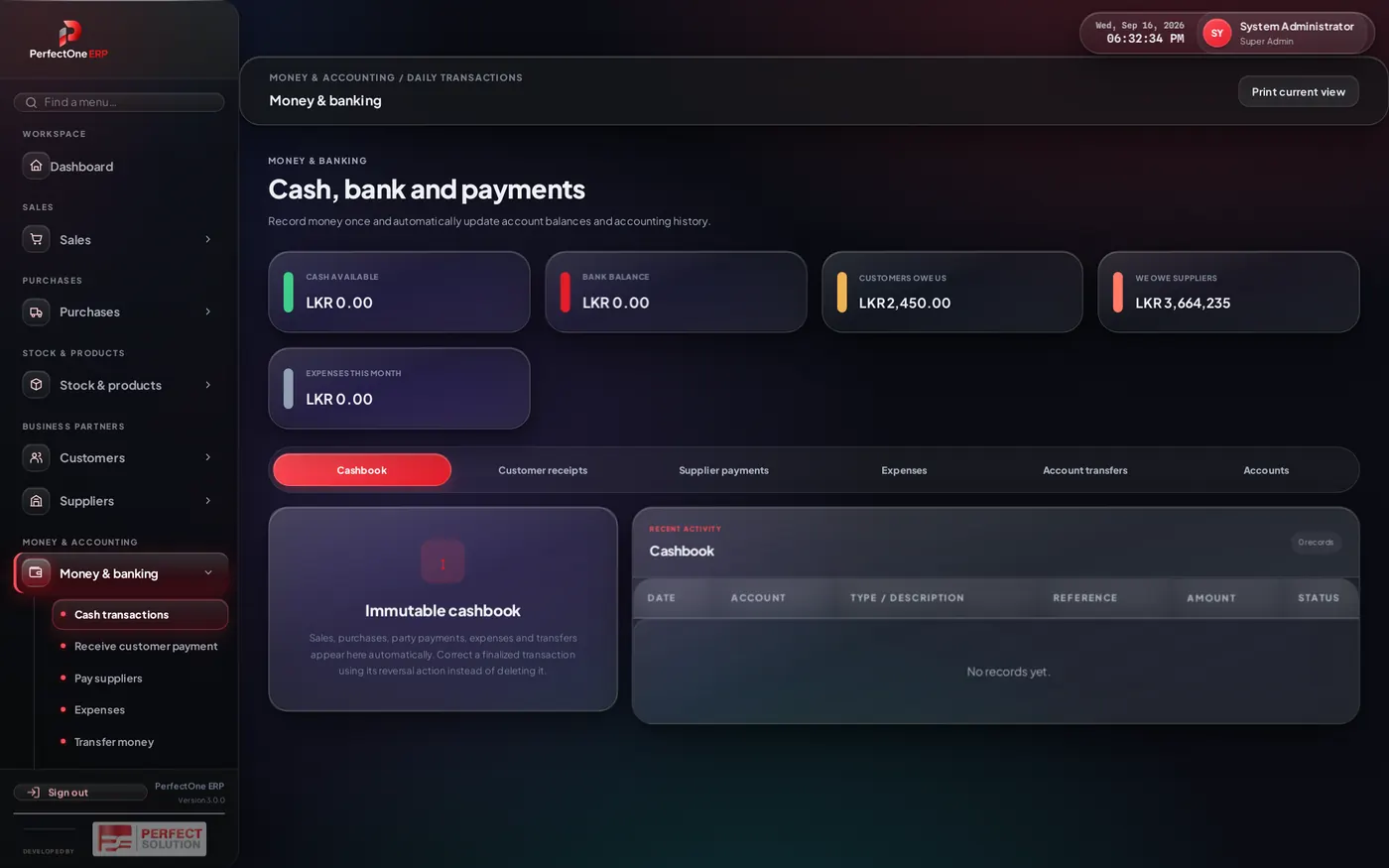
| Action | Use it for |
|---|---|
| Cash transactions | Day-to-day money in and out |
| Receive customer payment | Settle credit sales |
| Pay suppliers | Settle supplier bills |
| Expenses | Record running costs |
| Transfer money | Move funds between cash and bank accounts |
| Cash & bank accounts | Set up the accounts you operate |
22Accounting
Behind every sale, purchase and payment, the system keeps full double-entry accounting. Most of it is automatic — this screen is where you review and fine-tune it.
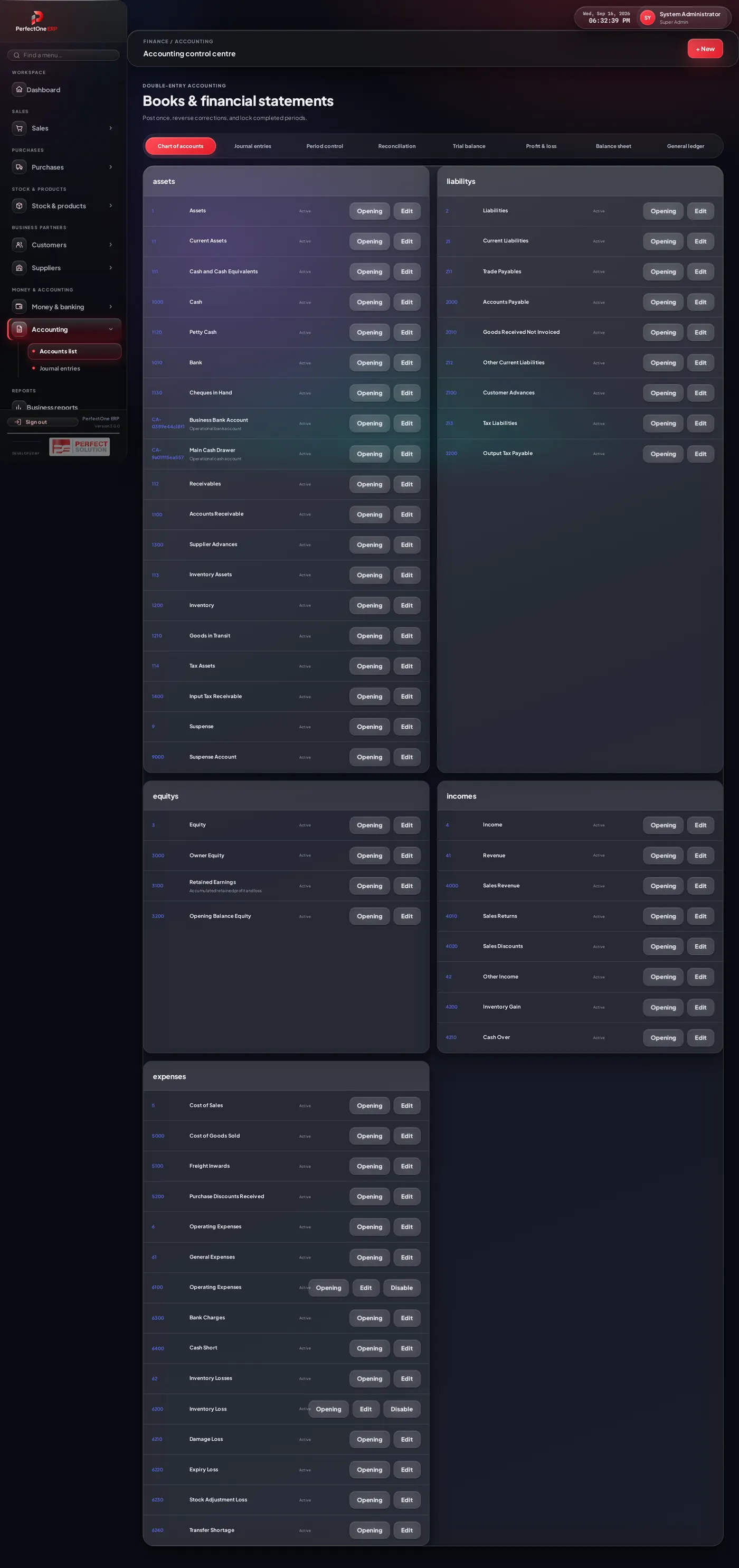
- Accounts list — the chart of accounts.
- Journal entries — manual entries and adjustments.
- Financial statements are produced from here — see Reports.
23Reports
Turn your data into decisions with business and financial reports.
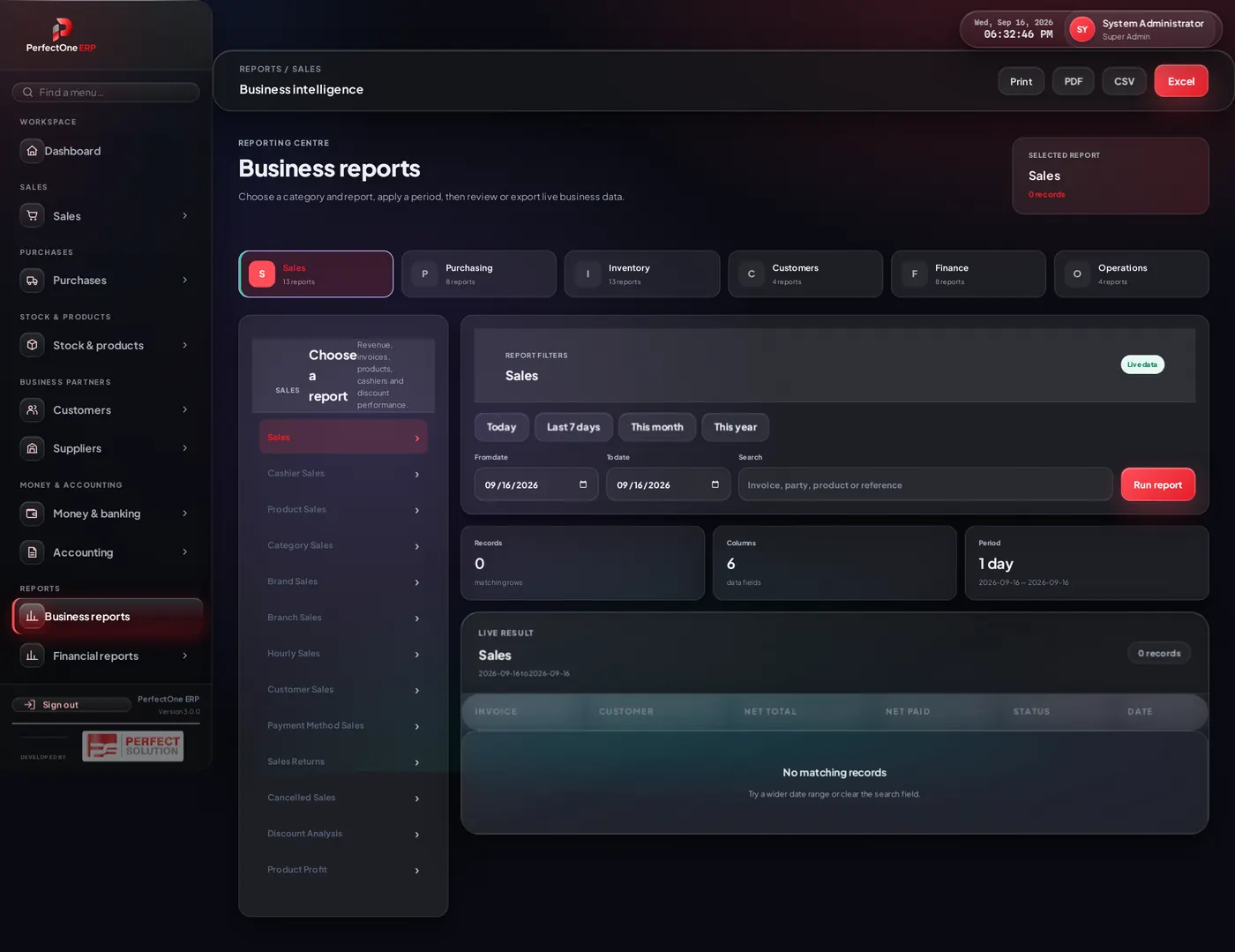
Business reports
Sales, purchases, stock, profit, best sellers and more — filter by date, branch or category and export to CSV/PDF.
Financial reports
- Trial balance
- Profit & loss
- Balance sheet
- General ledger
- Reconciliation
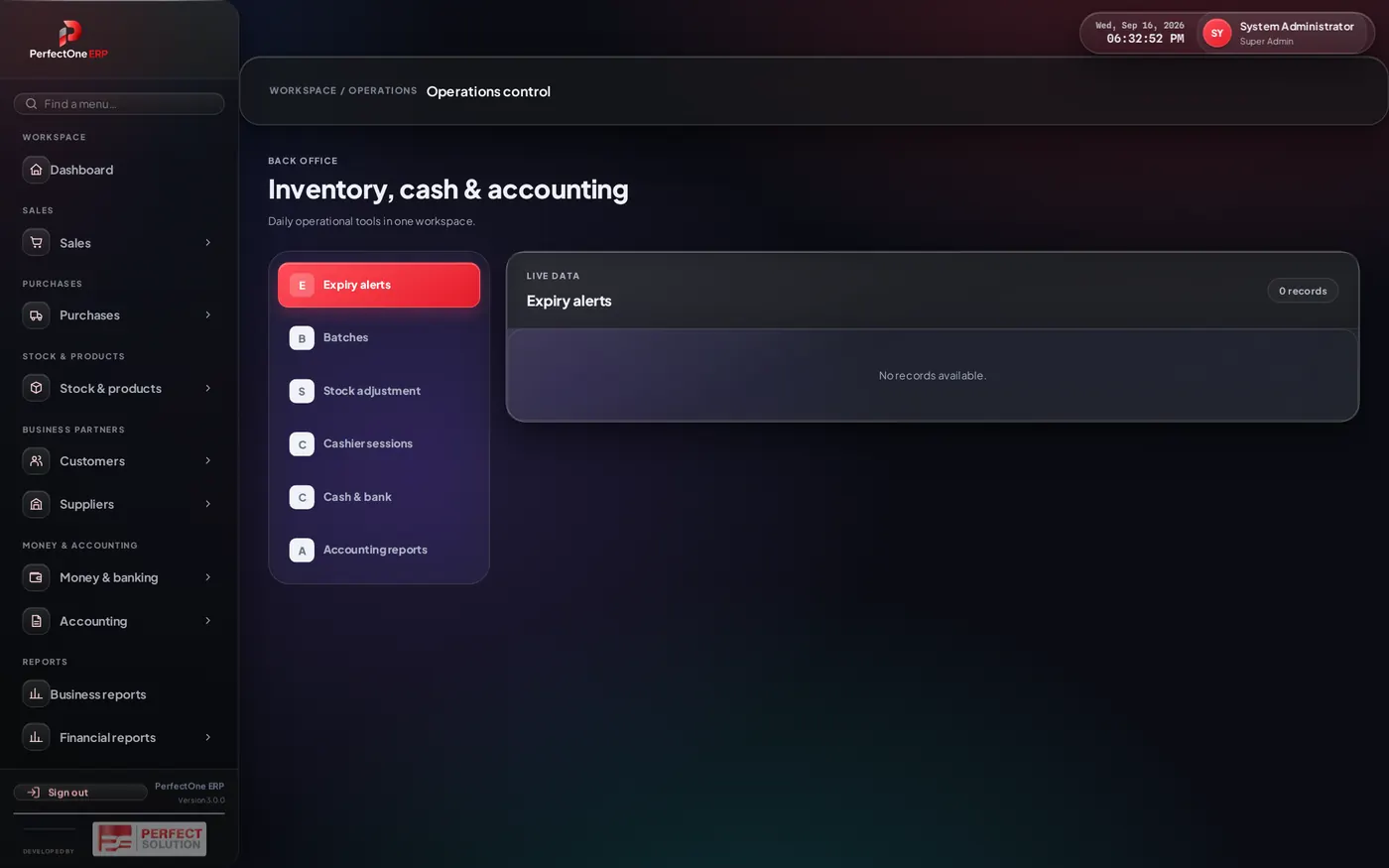
24Operations
A workspace that pulls together the daily operational tasks and their status.
25Approvals
Sensitive actions — big discounts, large stock adjustments, certain transfers — can be set to require a manager’s approval. Those requests land here.
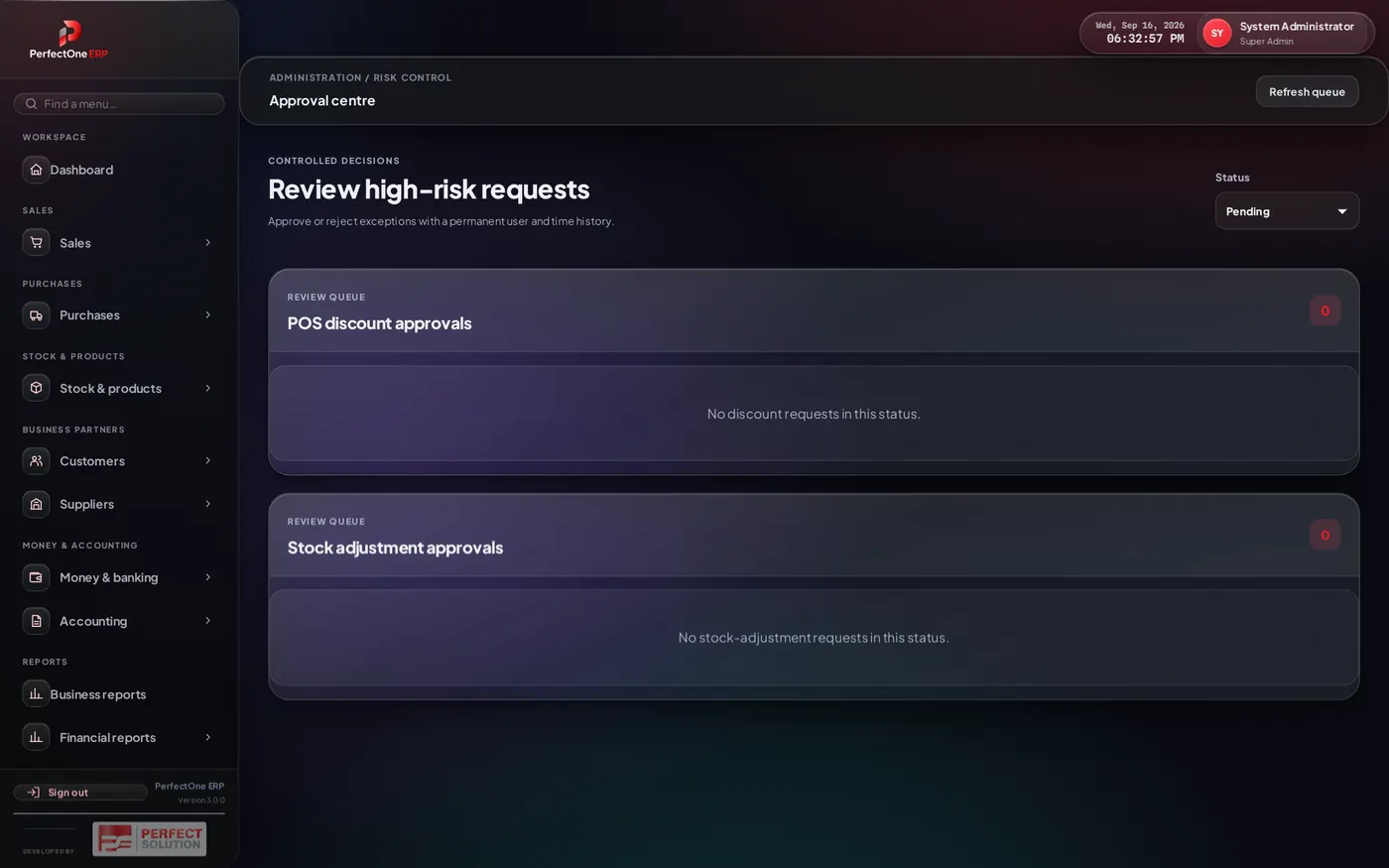
Approvers can review each request with its details and approve or reject it. Which actions need approval is governed by roles and permissions.
26Users & roles
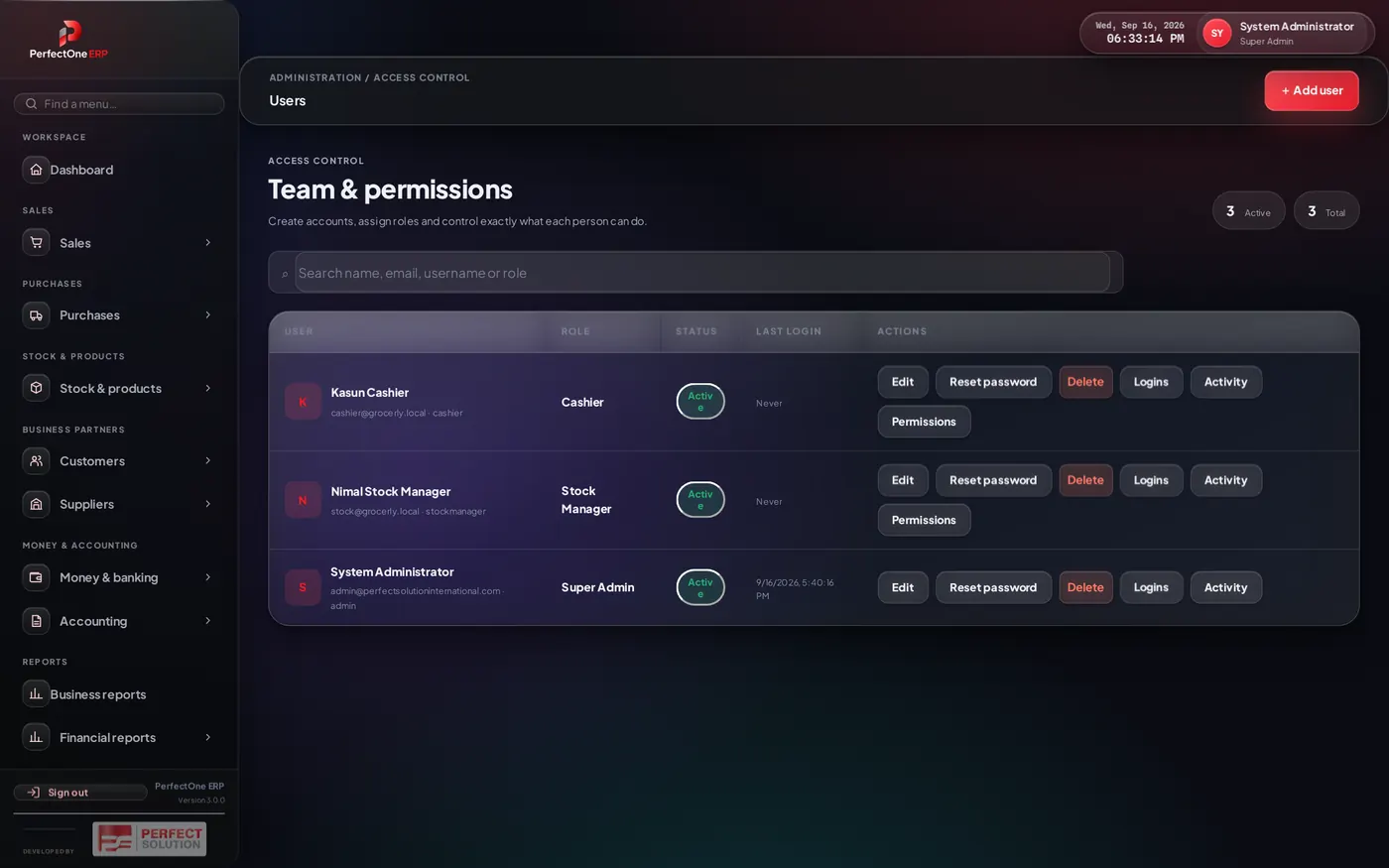
Control who can sign in and exactly what each person can do.
Roles & permissions
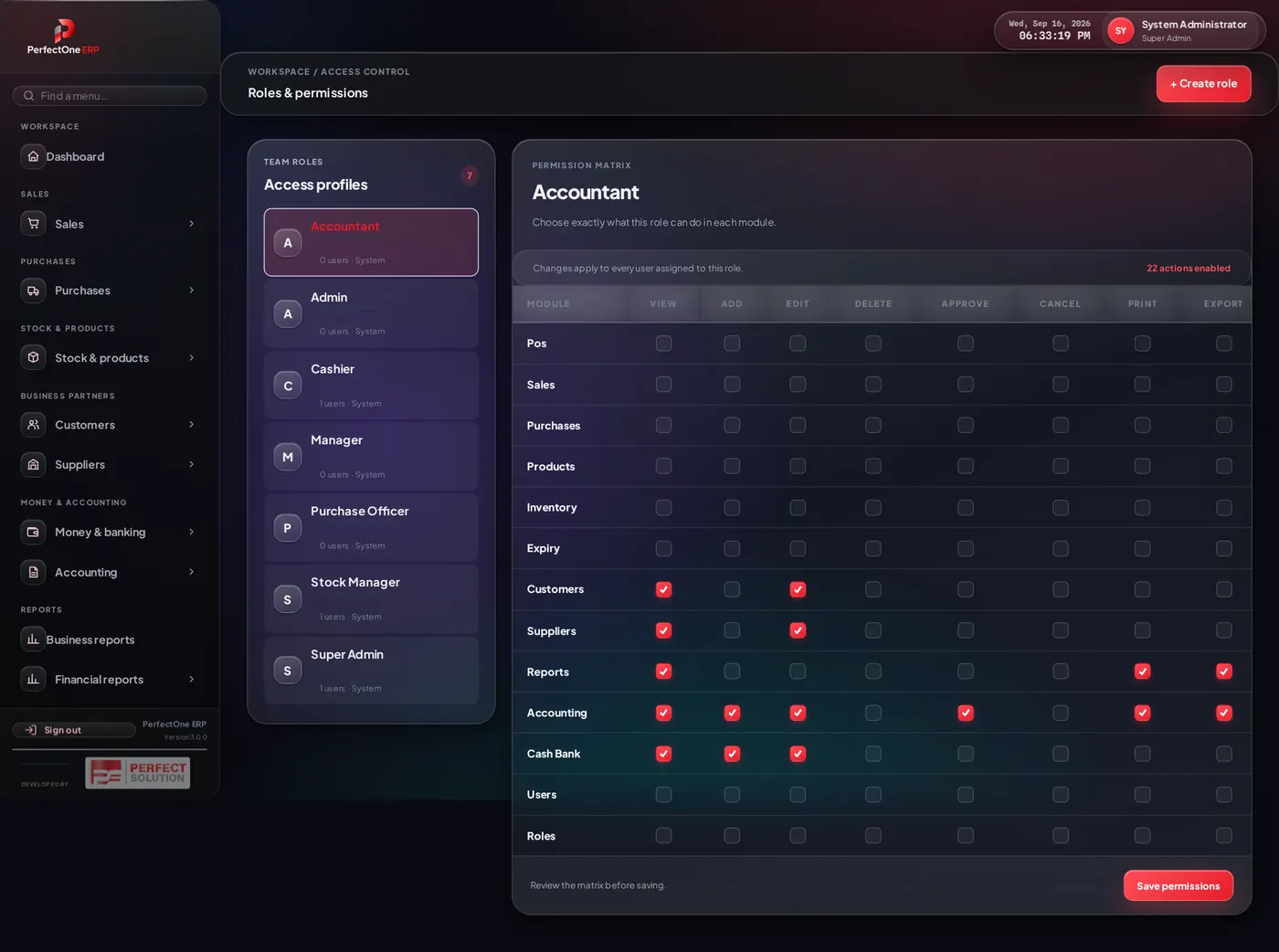
- Create a role (e.g. Cashier, Stock Manager, Accountant) and switch on only the permissions it needs.
- Create each user, assign a role and a branch.
- Users then see only the menus and actions their role allows.
27Branches
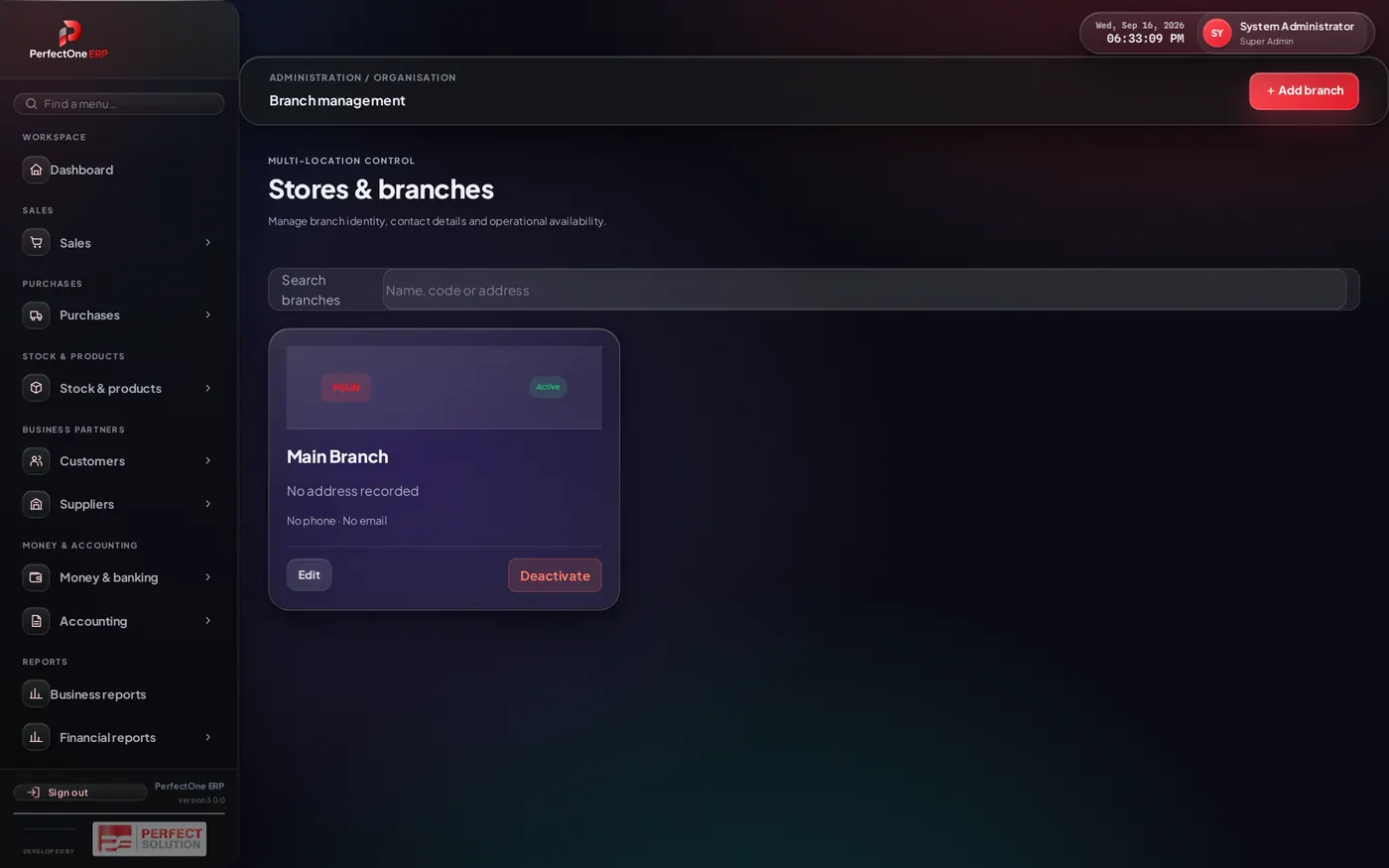
Run more than one shop from a single account. Each branch has its own stock, sales and cash position, while reports can roll everything up.
28Admin centre
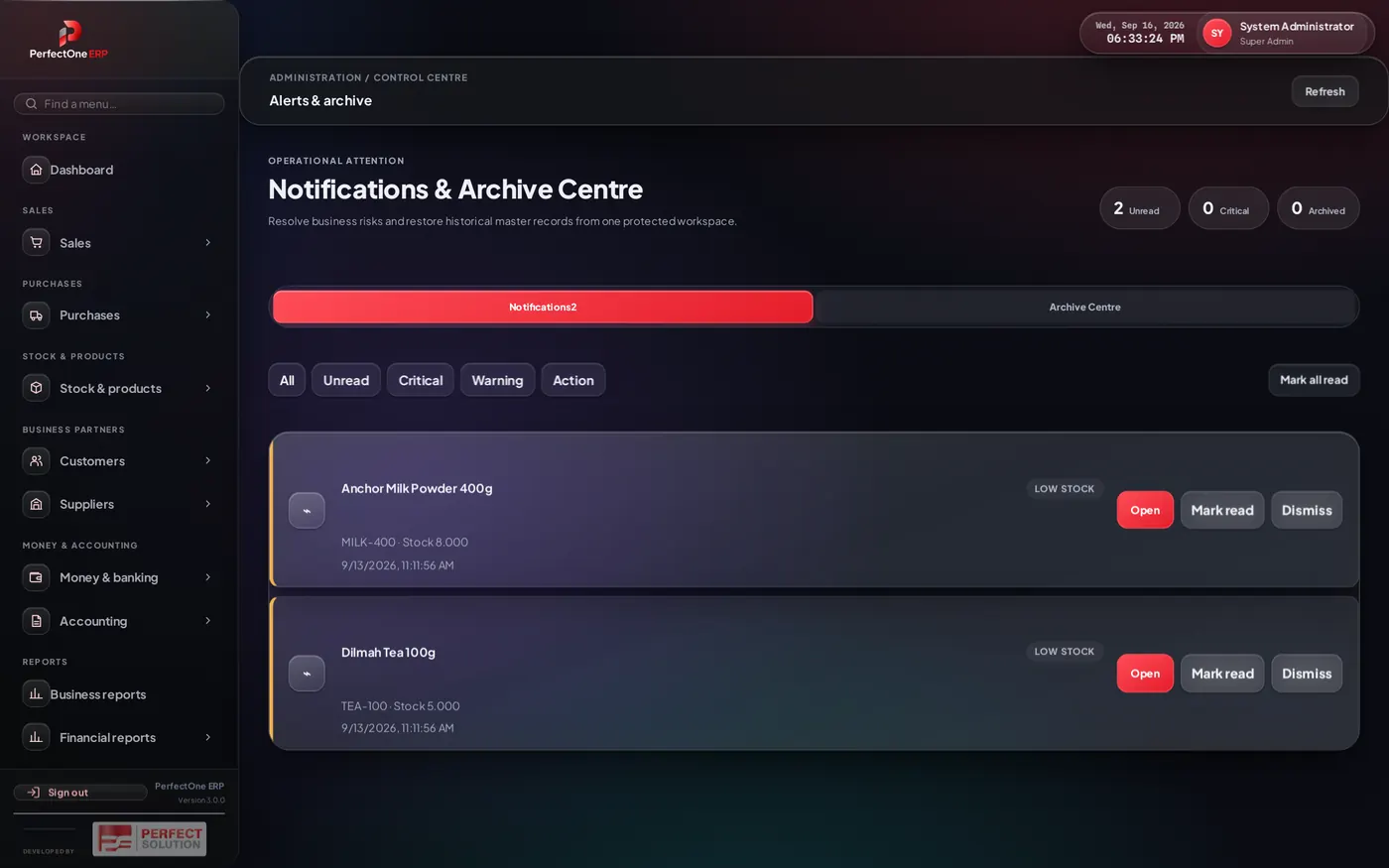
The alerts and archive hub — unread notifications, critical warnings and archived records, all in one place.
29Import / export data
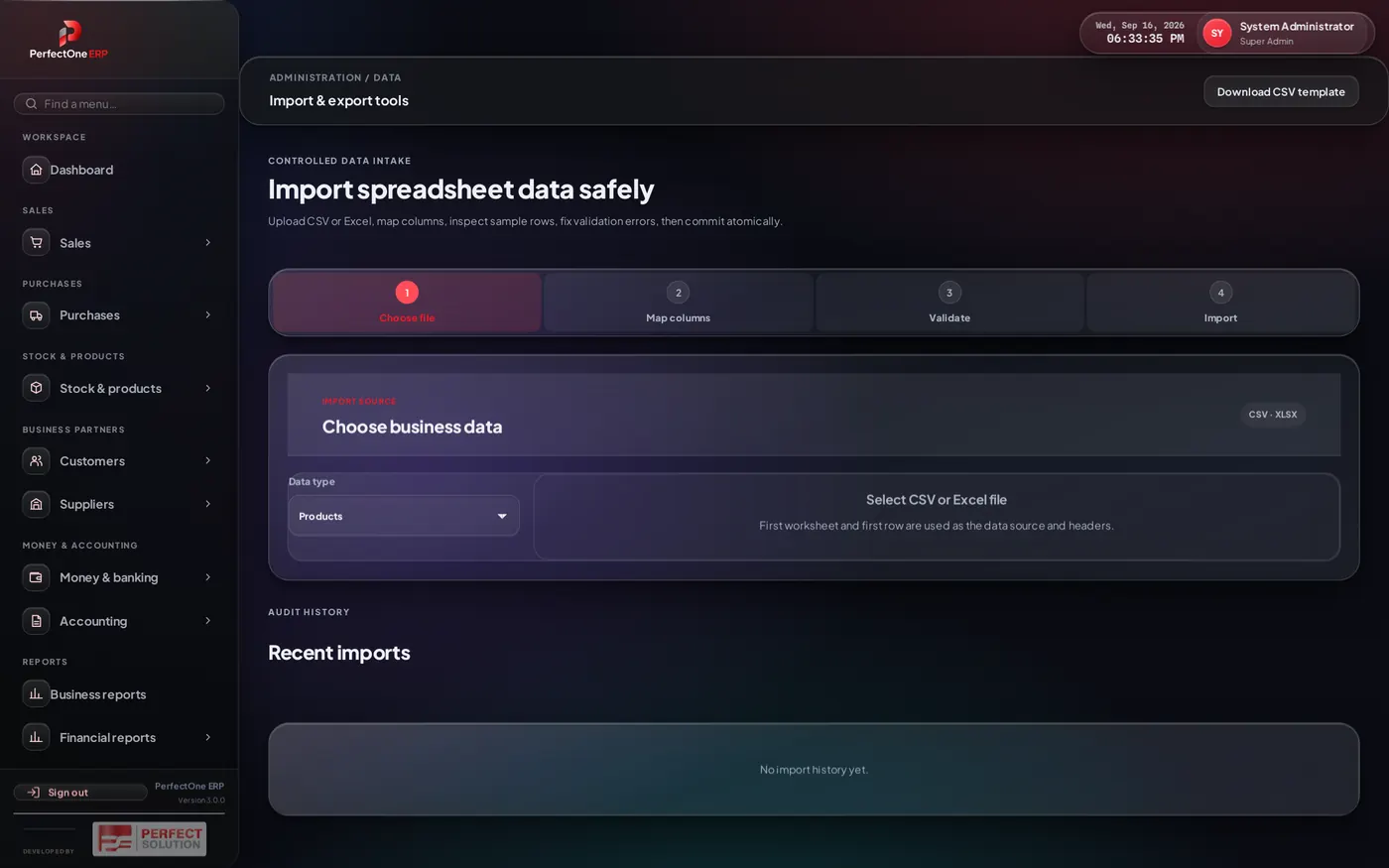
Bring data in from spreadsheets and take it back out again — ideal for loading your initial product list or exporting for analysis.
30Offline & sync
If the internet drops, the POS keeps selling. Transactions are stored safely on the device and pushed to the server automatically once the connection returns.
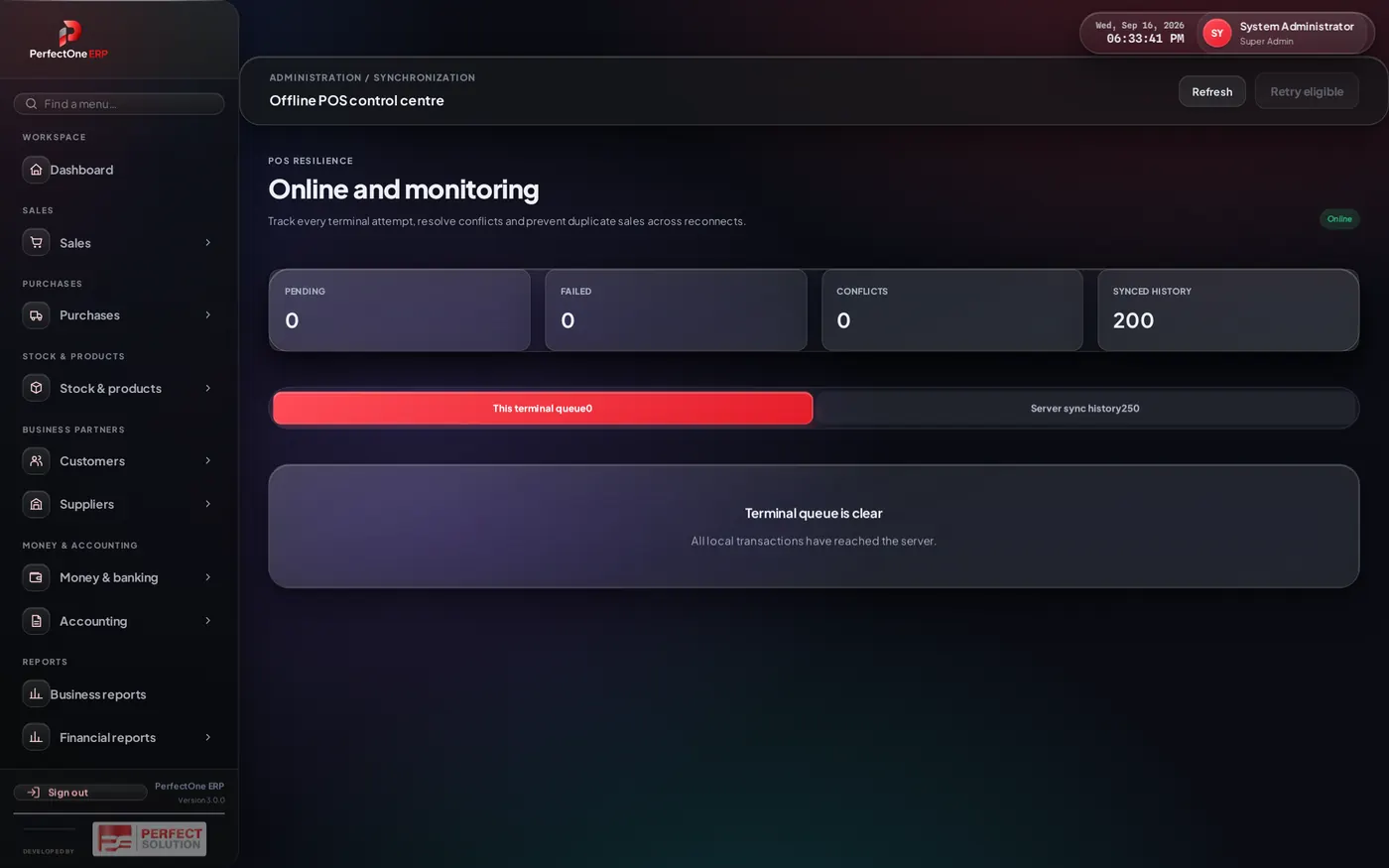
This screen shows any transactions waiting to sync, and flags any conflicts that need a person to resolve them.
31System settings
Configure the business — its name and logo, currency, tax rules, receipt layout and other system-wide options.
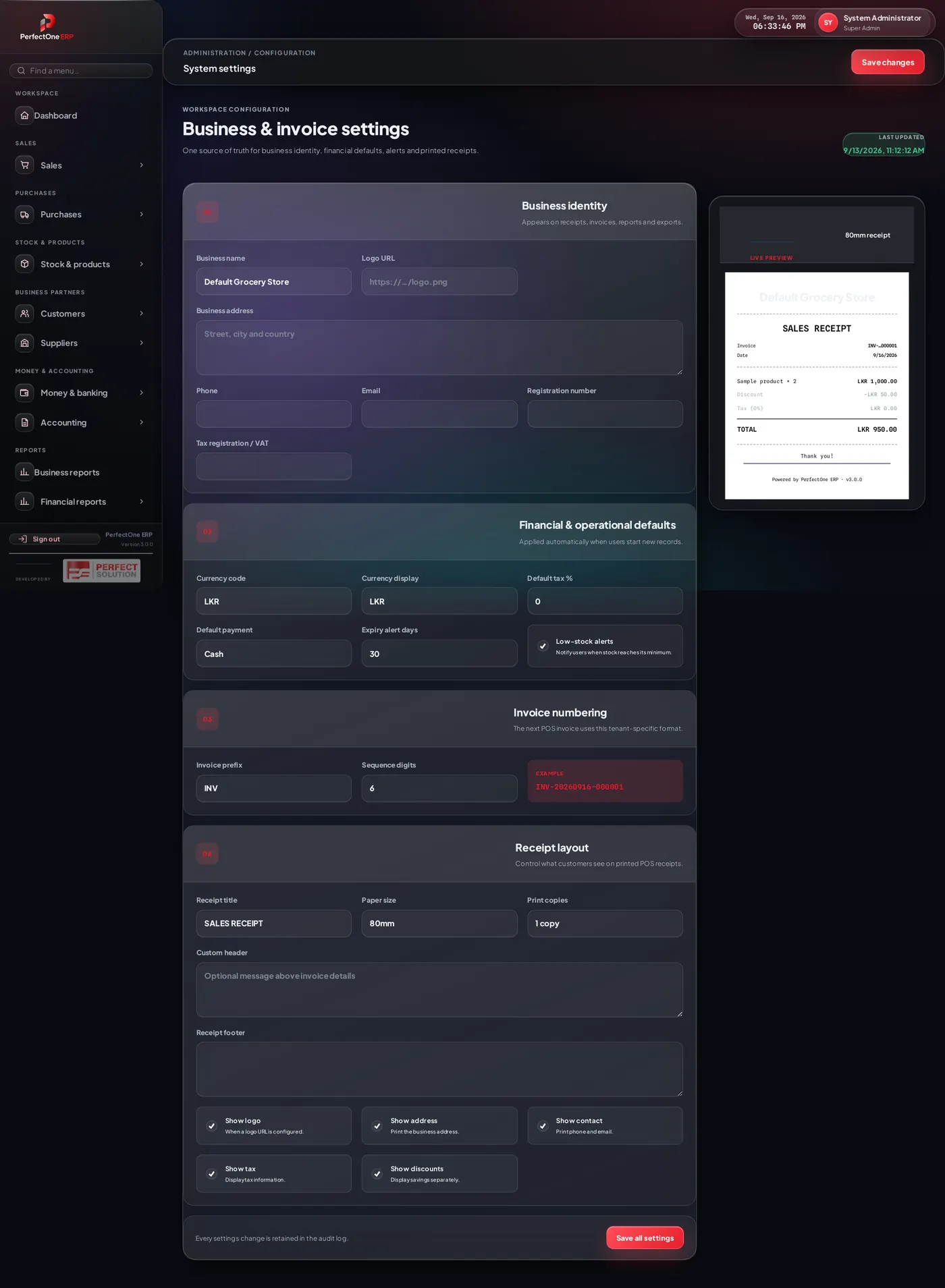
Also under System management: Backup & restore to safeguard your data.
32FAQ
The internet went down mid-sale — did I lose it?
No. The POS works offline and the sale is queued; it syncs automatically when you are back online. See Offline & sync.
A cashier can’t see a menu they need.
Their role is missing that permission. An admin can enable it under Users & roles.
How do I add opening stock for a new product?
Bring it in through a GRN or a stock count so cost and value are recorded correctly.
Why does a discount ask for approval?
It exceeds the limit set for that role. A manager can approve it on the spot, or in Approvals.
Can I run more than one shop?
Yes — set up each location under Branches.
33Support
Need a hand? Contact Perfect Solution International with your store name, the screen you were on, and a short description or screenshot of the issue — that gets you the fastest answer.
This guide covers the standard configuration; your installation may differ slightly based on the modules and permissions enabled for your account.